Data Reset
Access and Permissions
- Available to Tenant Managers, Campaign Managers and Campaign Contributors
- No access to Campaign Readers
Resetting Test Data
The Reset Data feature allows admins to clear test data generated during campaign testing before the campaign goes ‘Live’. This is useful for ensuring the campaign starts with a clean slate, free of any data created during the testing process.
⚠️ Note: The campaign must be switched to Test Mode before the Reset Data feature can be accessed. The option will not be available in Live Mode.
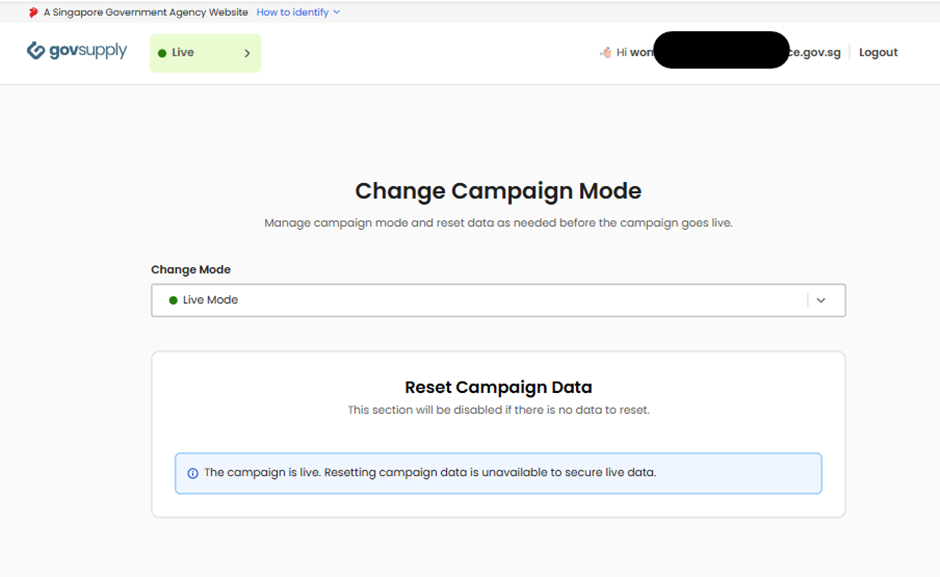
How to Reset Test Data
- Toggle your campaign to Test Mode at the top navigation bar.
- Select the specific type(s) of data you wish to reset based on your requirements.
- Click the ‘Reset’ button to perform the data reset function.
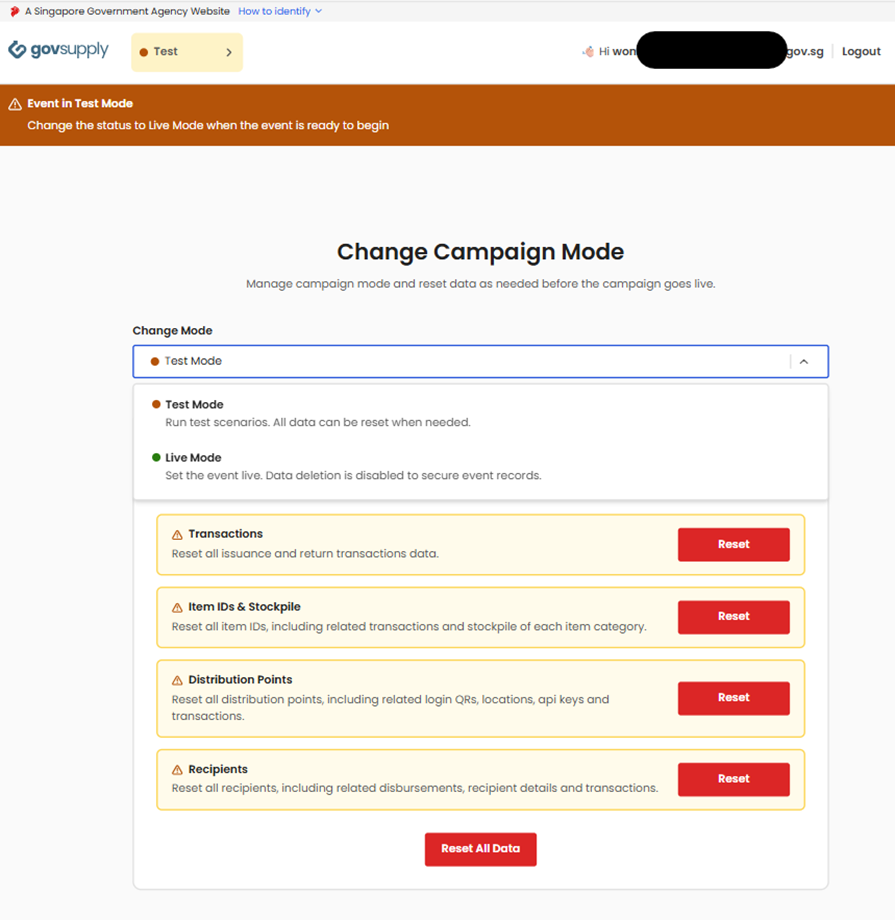
Reset Data Options
You can choose to reset specific data types individually, or reset everything at once. Note that resetting any data type will also clear its related transaction data.
- Transactions — Resets all issuance and return transaction data
- Item IDs & Stockpile — Resets all item IDs and related transactions. The stockpile of each item category will also be reset to zero
- Distribution Points — Resets all distribution points and related transactions, including login QR codes, locations, and API keys
- Recipients — Resets all recipients and related transactions, including disbursements and recipient details
- Reset All Data — Clears all of the above in a single action
Things to Know
- Scope — Resetting in Test Mode clears all transaction data across the entire campaign, including any data from a previous Live Mode run
- Multiple resets — You can reset as many times as needed before going ‘Live’. There is no limit to the number of resets in Test Mode
⚠️ Note: A reset cannot be undone. Ensure you no longer need the test data before proceeding.
