Admin Portal
Let’s use an example to walk you through how to set up a distribution campaign on GovSupply admin portal.
Step 1: Basic Information
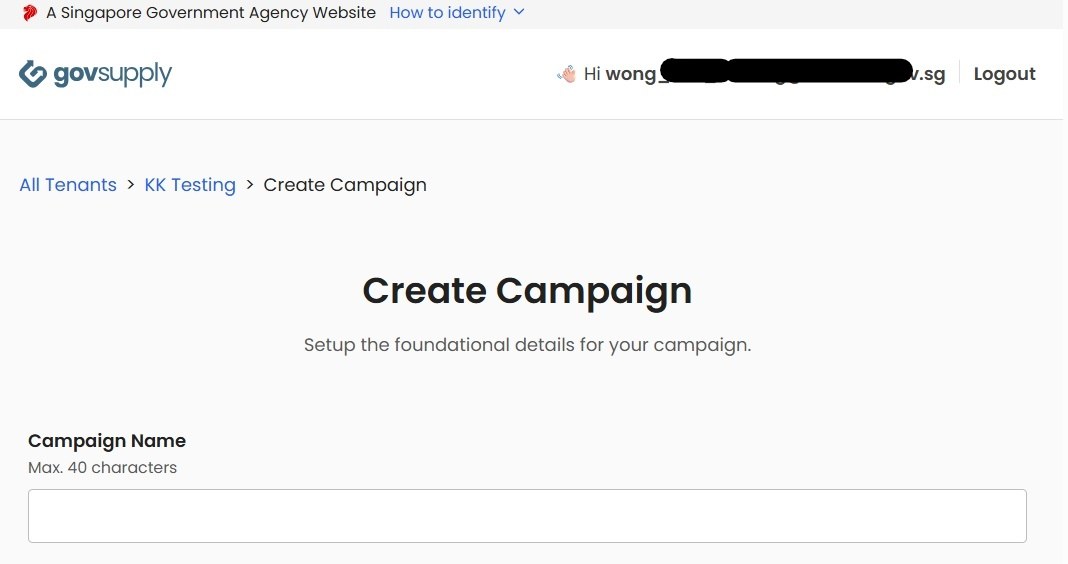
First, you will need to give your distribution campaign a unique name.
- Keep to less than 40 characters
Step 2: Distribution Type & Recipient Eligibility
Configure your campaign by enabling the relevant option(s) based on your use case:
- Allow Returns: Enable this if recipients are allowed to return unique items after they have been distributed
- Stocktaking: Enable this if you intend to use the campaign for asset management. ⚠️Note that items configured with recurring issuance are not supported under stocktake
- Open to All: Enable this for campaigns that distribute items or merchandise to the general public, allowing anyone to redeem without being on a recipient list. ⚠️Note that this option currently only supports item categories configured with recurring issuance. Recipient details are not required to be set up in advance
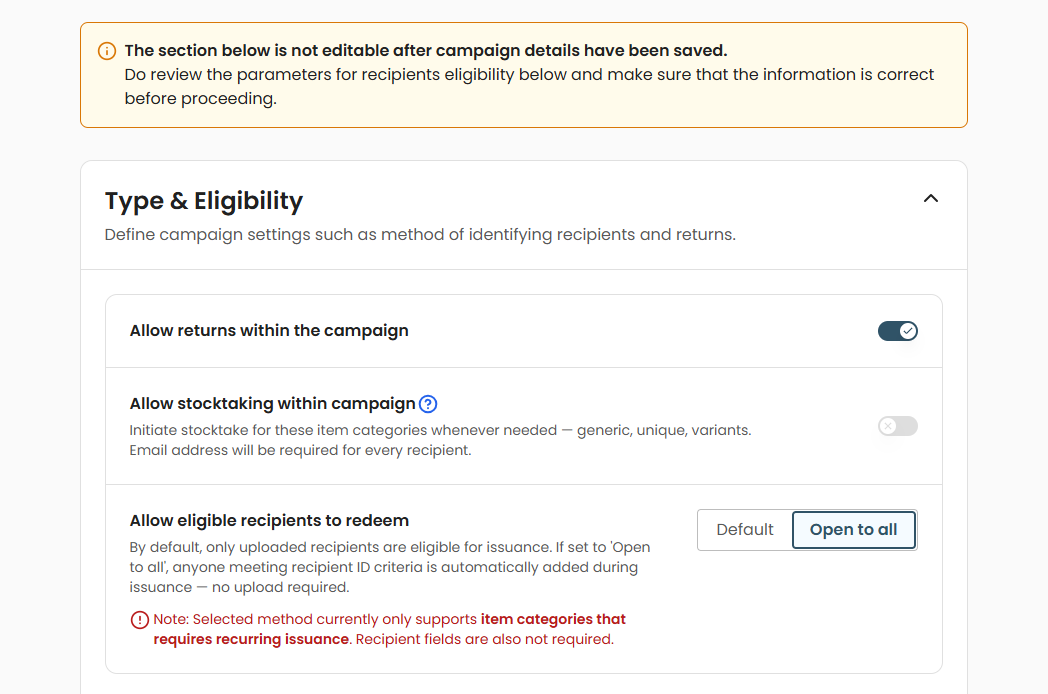
⚠️Note: You can only enable either Stocktaking or Open to All, but not both
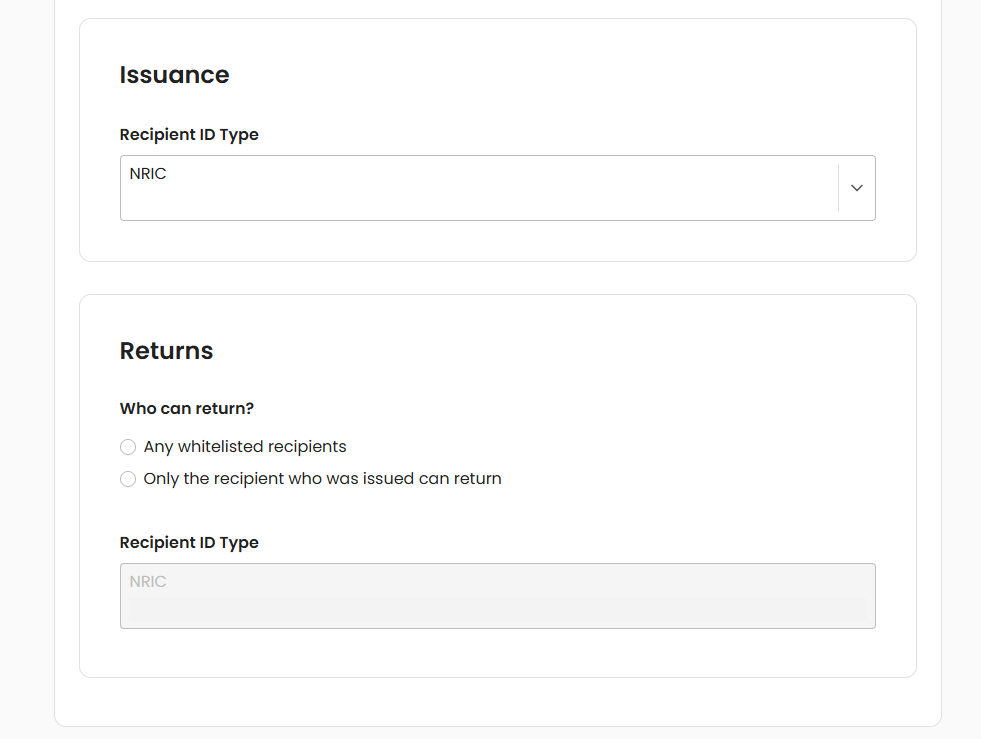
- Recipient ID type is how you uniquely identify a recipient during redemption or return. Supported formats include NRIC, email, or alphanumeric strings (e.g. unique identifiers made up of random characters). By default, the same ID type is used for both issuance and returns
- Return Policy: Under the Returns section, admins must define who is permitted to return items after they have been issued
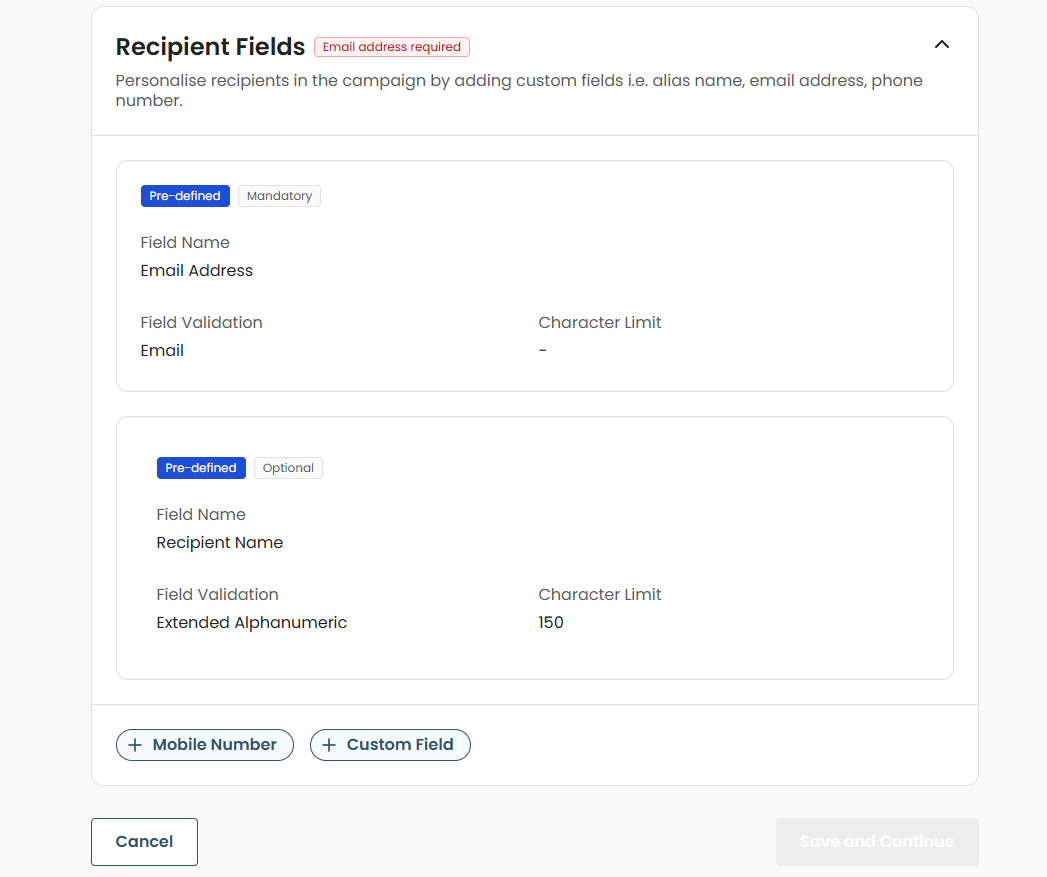
Step 3: Recipient Fields
This section is optional, unless your campaign has stocktaking enabled. Campaigns with stocktaking enabled require recipients to have an email address configured as one of the recipient fields. This must be manually added by the admin before the campaign can be created.
- Pre-defined Fields: You can also select from a list of commonly used fields available in the admin portal, such as name, mobile number, and email address
- Custom Fields: If your organisation uses an alphanumeric string (e.g. a system-generated ID) as the recipient identifier, you can add custom fields here to help volunteers better identify an eligible recipient during distribution
Step 4: Confirm Creation
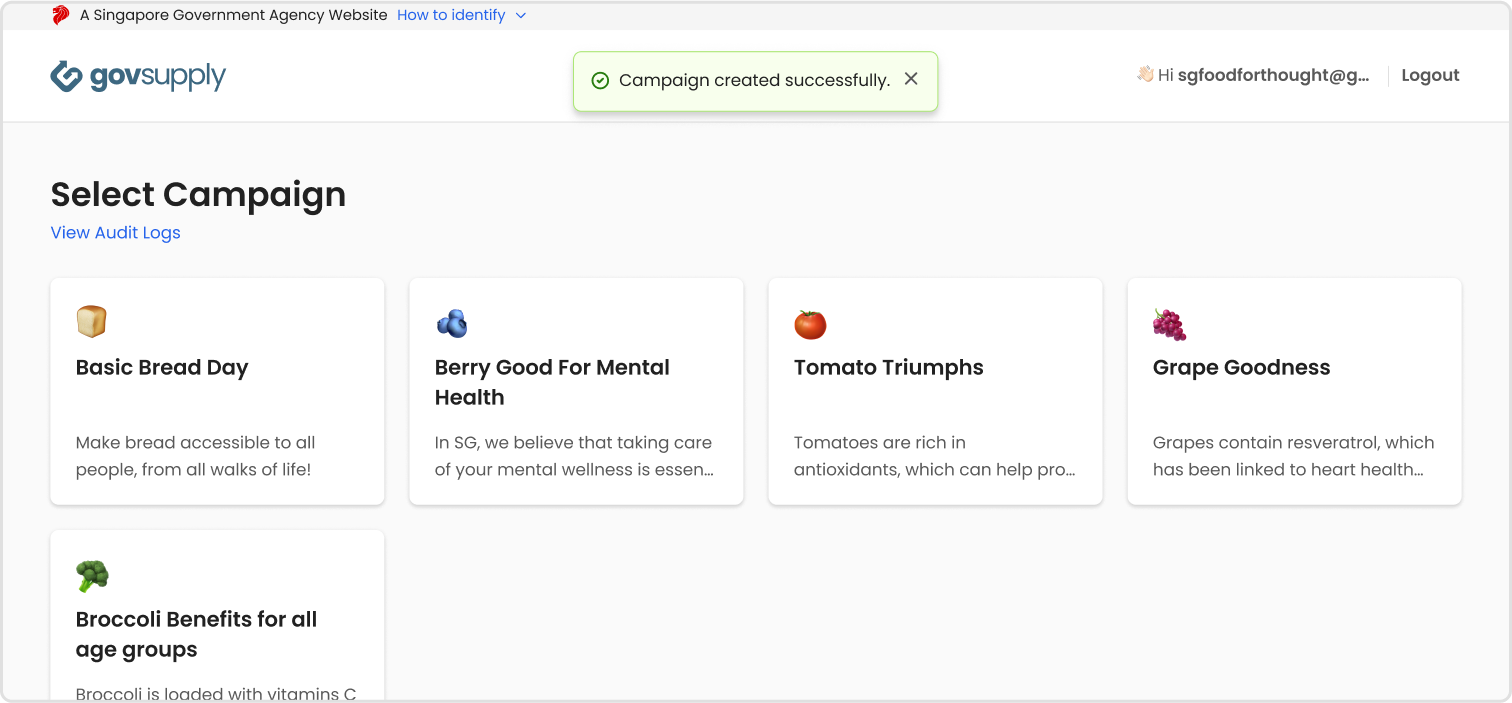
The first part of creating the distribution campaign is completed.
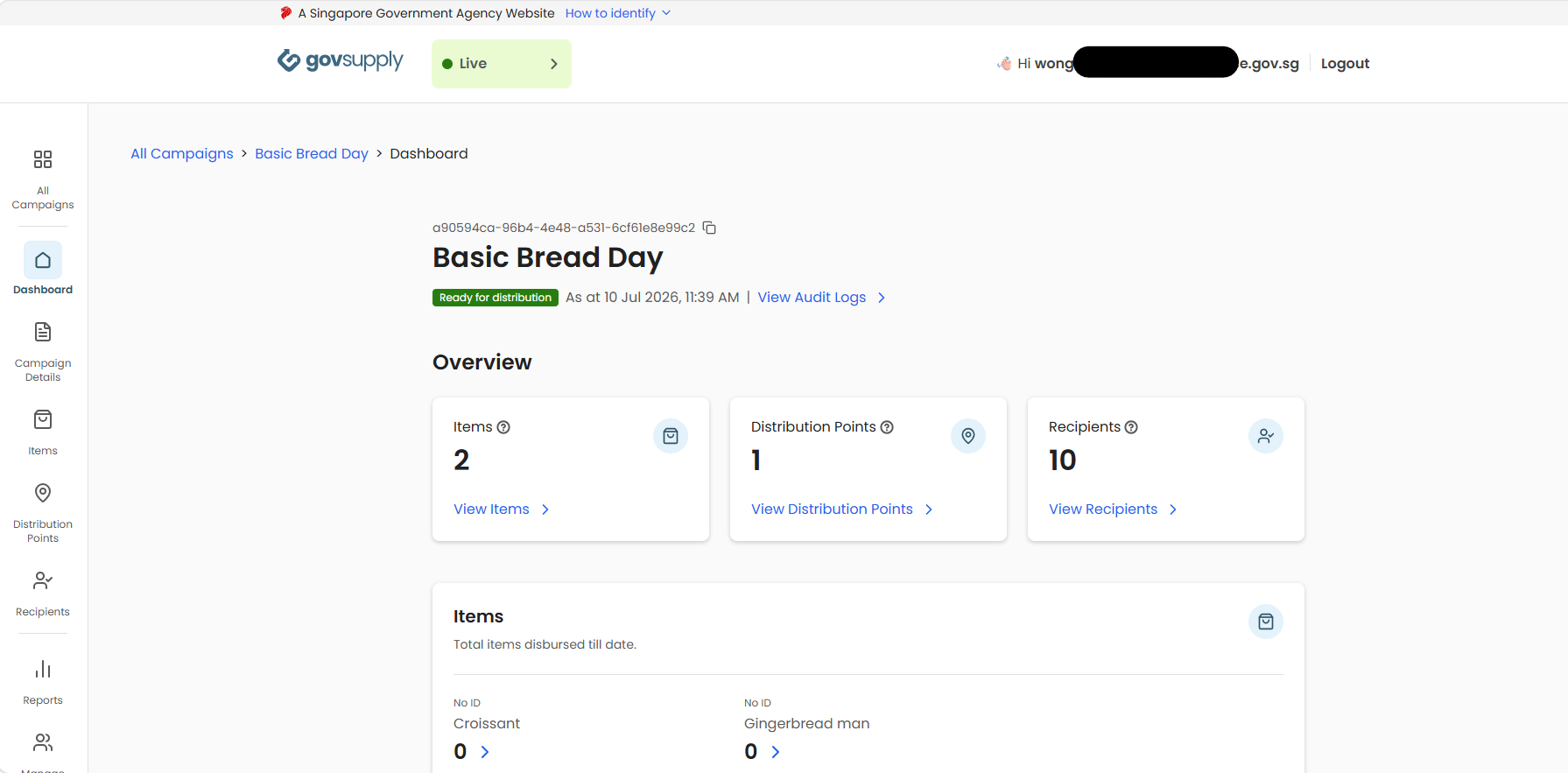
Step 5: Dashboard
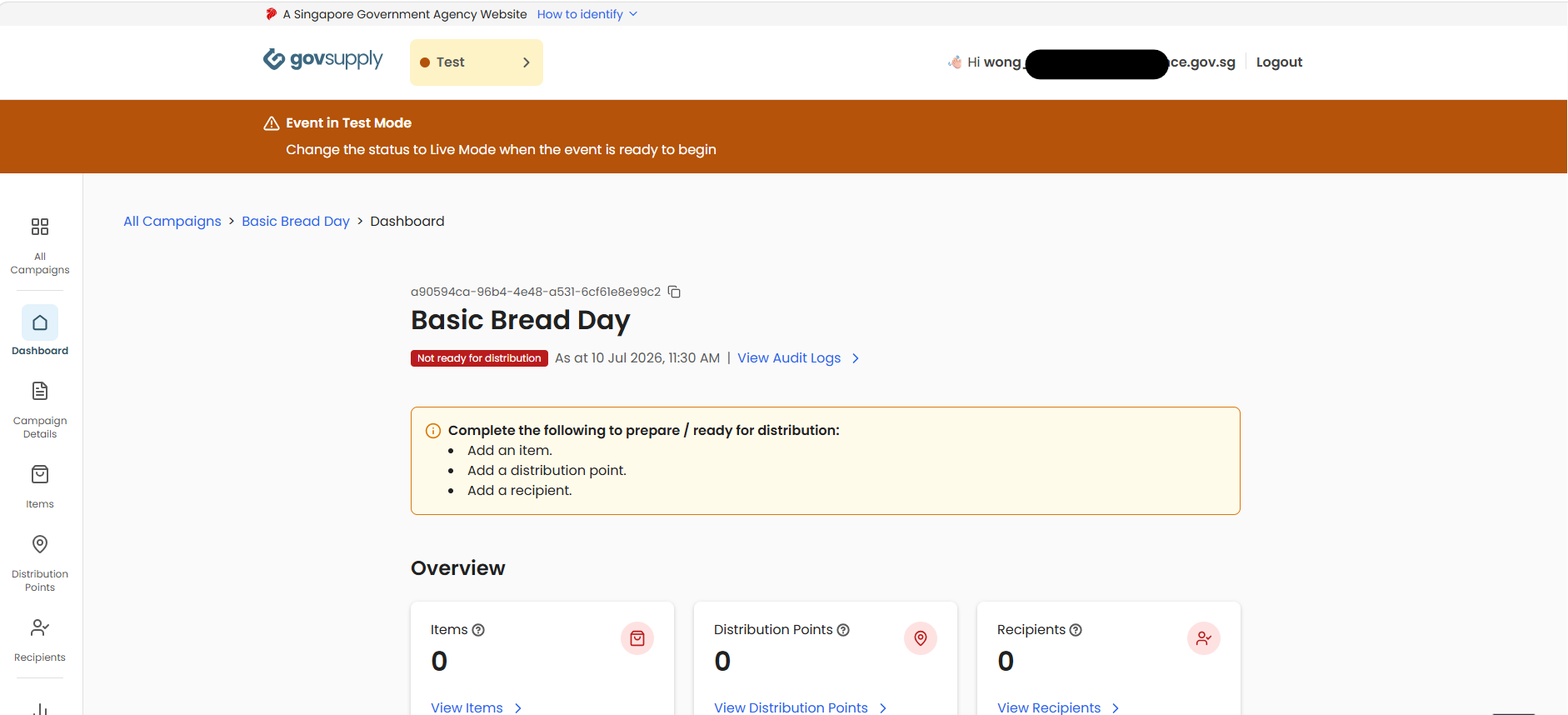
When you click into a campaign, you will see the campaign’s dashboard giving you a quick overview of:
- Readiness status, which determines whether your campaign is ready for distribution or not
- Summary statistics that is refreshed in real time
- Total items setup in campaign
- Total distribution points setup in campaign
- Total recipients setup in campaign
- Breakdown of items disbursed (will only be shown after distribution has started)
Step 6: Set Up Items
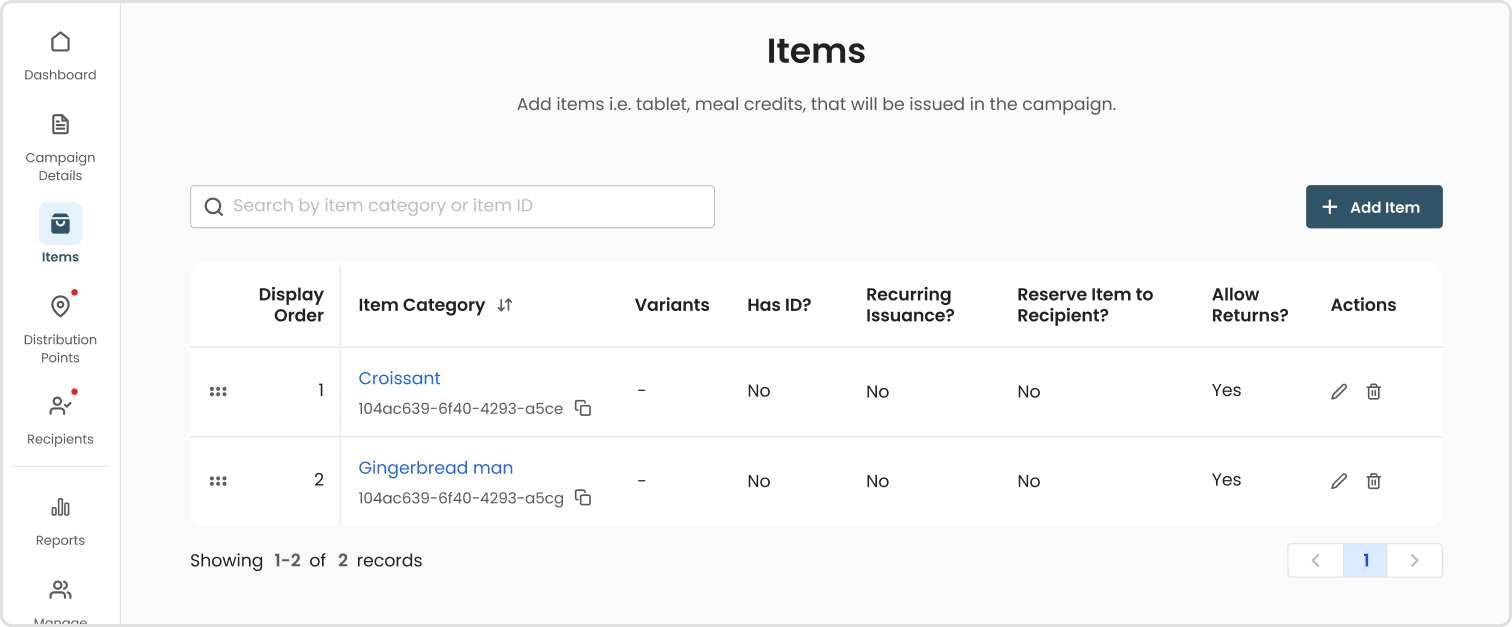
You will need to add and provide basic information of the item categories that will be distributed in the campaign.
- There is no limit to the number of items categories you can create
- Display order is rearrangeable, we recommend the most commonly distributed item at the top
- Read more related topics about items
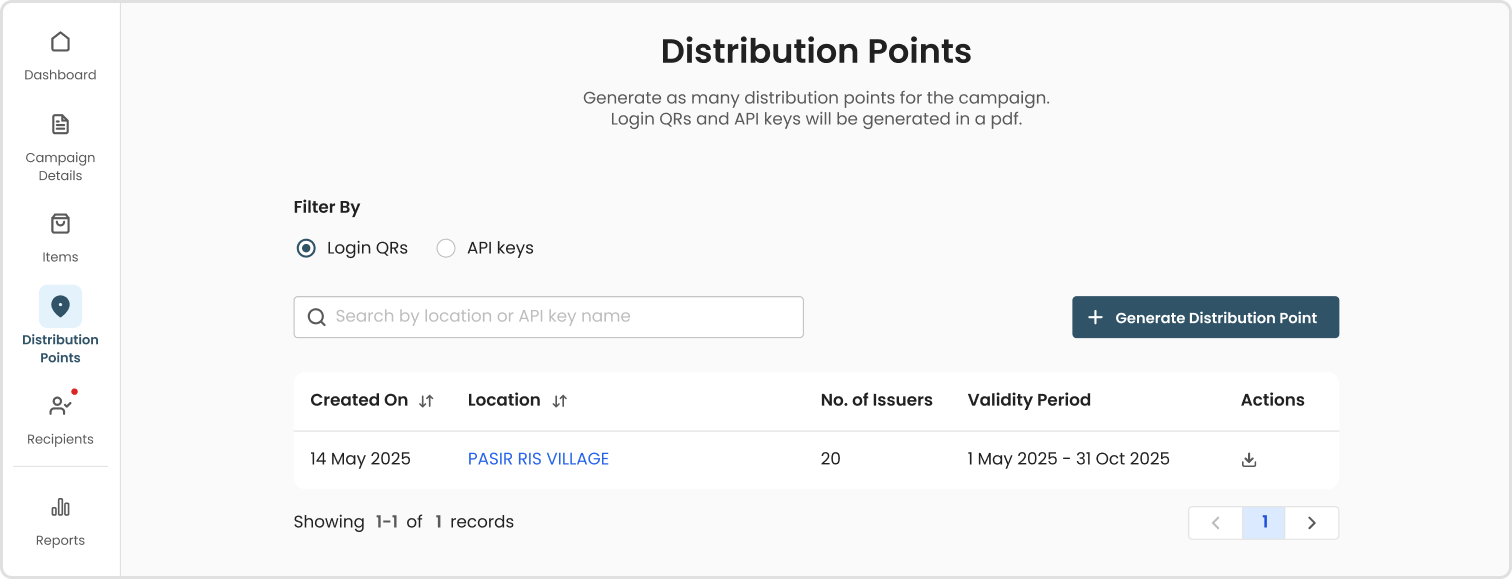
Step 7: Set Up Distribution Points
Distribution points can vary according to campaign needs.
- If your campaign requires a physical location point for distribution, we recommend creating a login QR where your distributors can use to log in and distribute via GovSupply’s distribution app
- If your campaign is using a vending machine or point of sale to facilitate the distribution, and requires the calling of GovSupply’s API, we recommend generating an API key to connect with the relevant external systems. Refer to GovSupply’s API Spec for more information on how to integrate with existing systems to meet the distribution needs
- Able to bulk create distribution points for convenience
- Read more related topics about distribution points
Step 8: Set Up Recipients
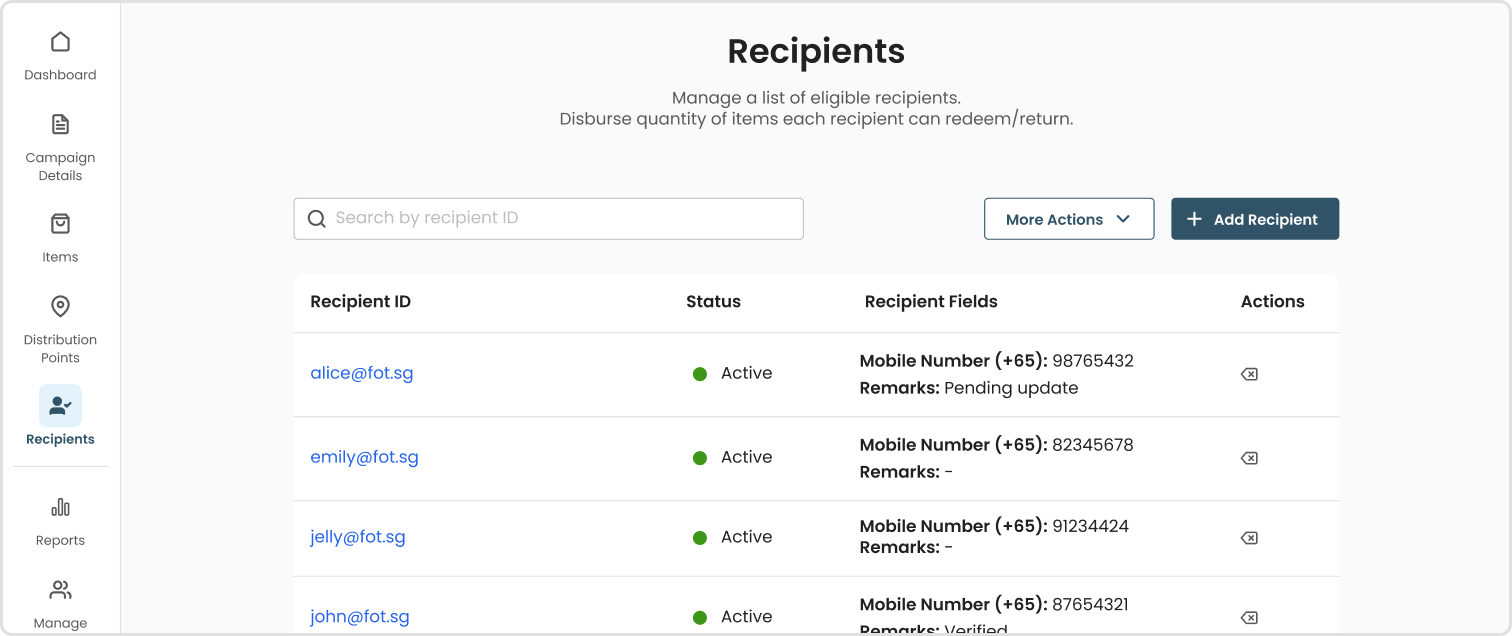
Finally, whitelist all eligible recipients for the campaign into the admin portal.
- There is no limit to the number of recipients you can add
- Able to bulk upload recipients for convenience
- For every recipient, disburse the item category and quantity
- Read more related topics about recipients
Step 9: Good to Go
Check for readiness status of distribution campaign on the Campaign Dashboard. When all is in place, you are good to start distribution.