GovSupply Web-based Stocktaking App
Let’s walk through how to submit the stocktaking status for items issued to recipients in your campaign using the GovSupply web-based stocktaking app.
Step 1: Access the Stocktaking Web-based App
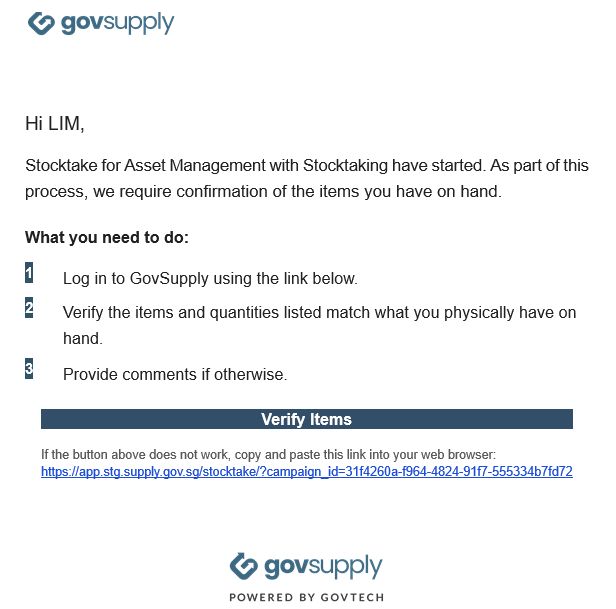
Recipients who have been issued items in the campaign will receive an email when the campaign admin initiates a stocktaking activity from the admin portal. The email will be sent to the address in the email field under the Recipients tab in the admin portal.
- The email will include a link for recipients to access the web-based stocktaking app.
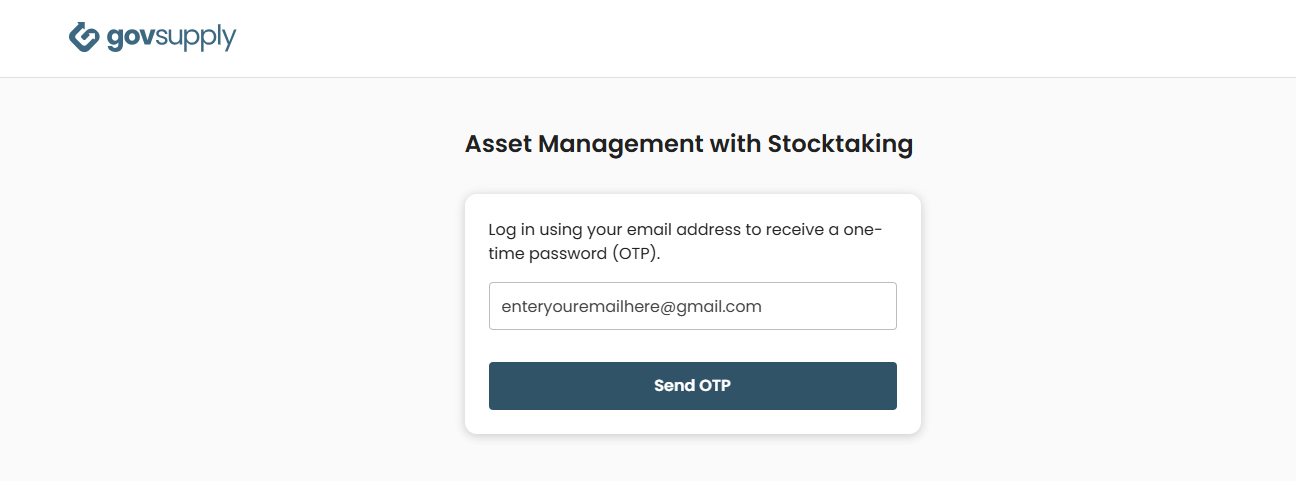
- For security purposes, recipients must enter their email address on the login page to request an OTP before reaching the stocktaking page.
Step 2: Submit Stocktaking Status for Items
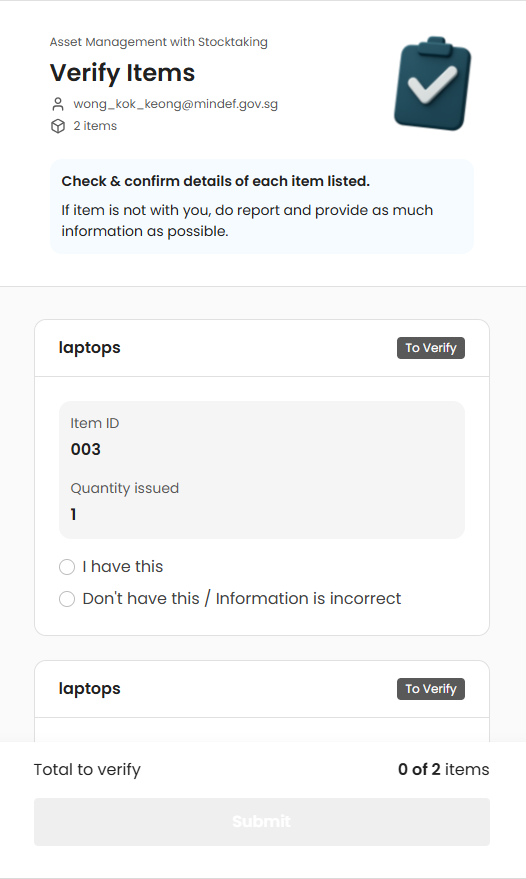
At the stocktaking page, GovSupply lists all items issued to the recipient, along with the available response options to complete the stocktaking activity. Depending on the item category, the workflow differs.
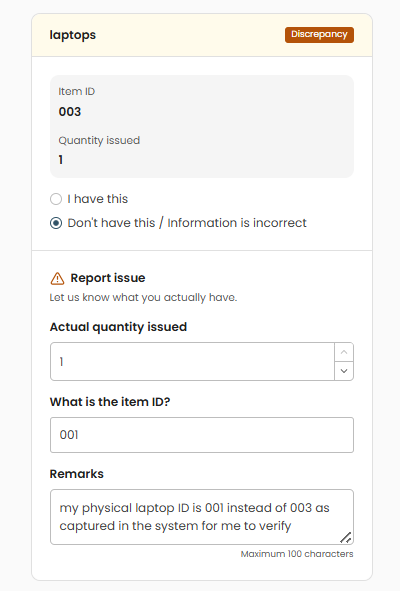
Unique Item Flow
- If the unique item ID displayed is correct, enter
1under Submitted Quantity and selectI have thisoption. - If the unique item ID displayed differs from the physical item on hand, enter
0under Submitted Quantity, input the unique item ID of the physical item, and selectDon't have this / Information is incorrectoption. - Recipients must provide remarks to explain any discrepancy.
Bulk Item Flow
- If the bulk item quantity displayed is correct, enter the quantity under Submitted Quantity and select
I have thisoption. - If the bulk item quantity displayed is incorrect, enter the physical quantity on hand under Submitted Quantity and select
Don't have this / Information is incorrectoption. - Recipients must provide remarks to explain any discrepancy.
Bulk Variant Item Flow
- If the bulk item variant type and quantity displayed are correct, enter the quantity under Submitted Quantity and select
I have thisoption. - If the bulk item variant type and/or quantity displayed is incorrect, enter the physical quantity on hand under Submitted Quantity, select the variant type physically on hand, and select
Don't have this / Information is incorrectoption. - Recipients must provide remarks to explain any discrepancy.
Step 3: Submit the Completed Stocktaking Status
Once all listed items have been stocktaken, the Submit button will be enabled for recipients to complete the stocktaking activity.
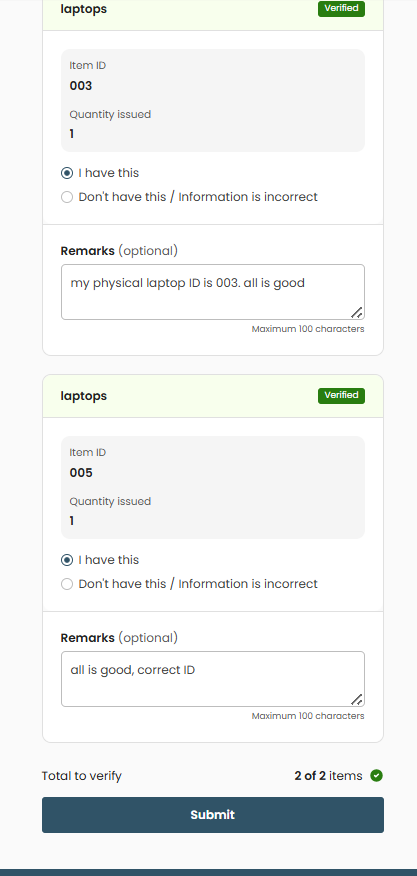
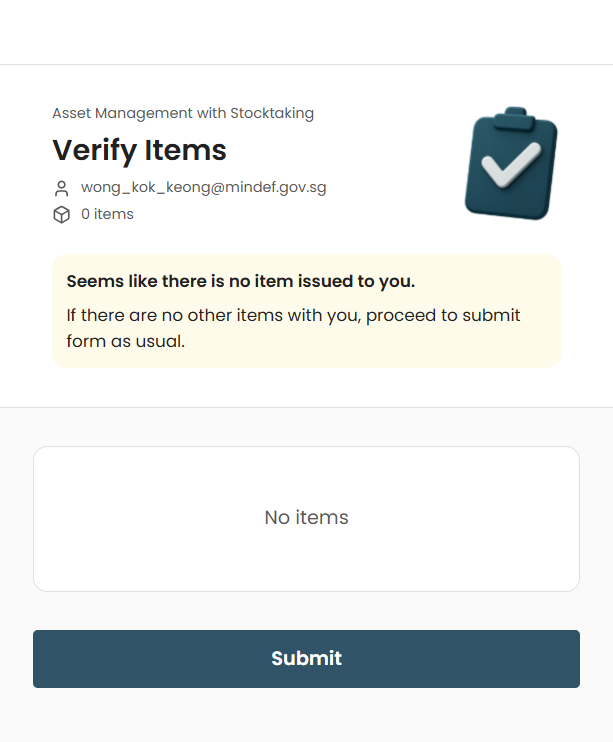
- Recipients only need to submit once. After submission, returning to the same page will show that there are no items remaining to stocktake.