GovSupply Web-based Distribution App
Let’s use an example to walk you through how to distribute items in the campaign that you have just set up, using GovSupply web-based distribution app.
Step 1: Volunteer Log In
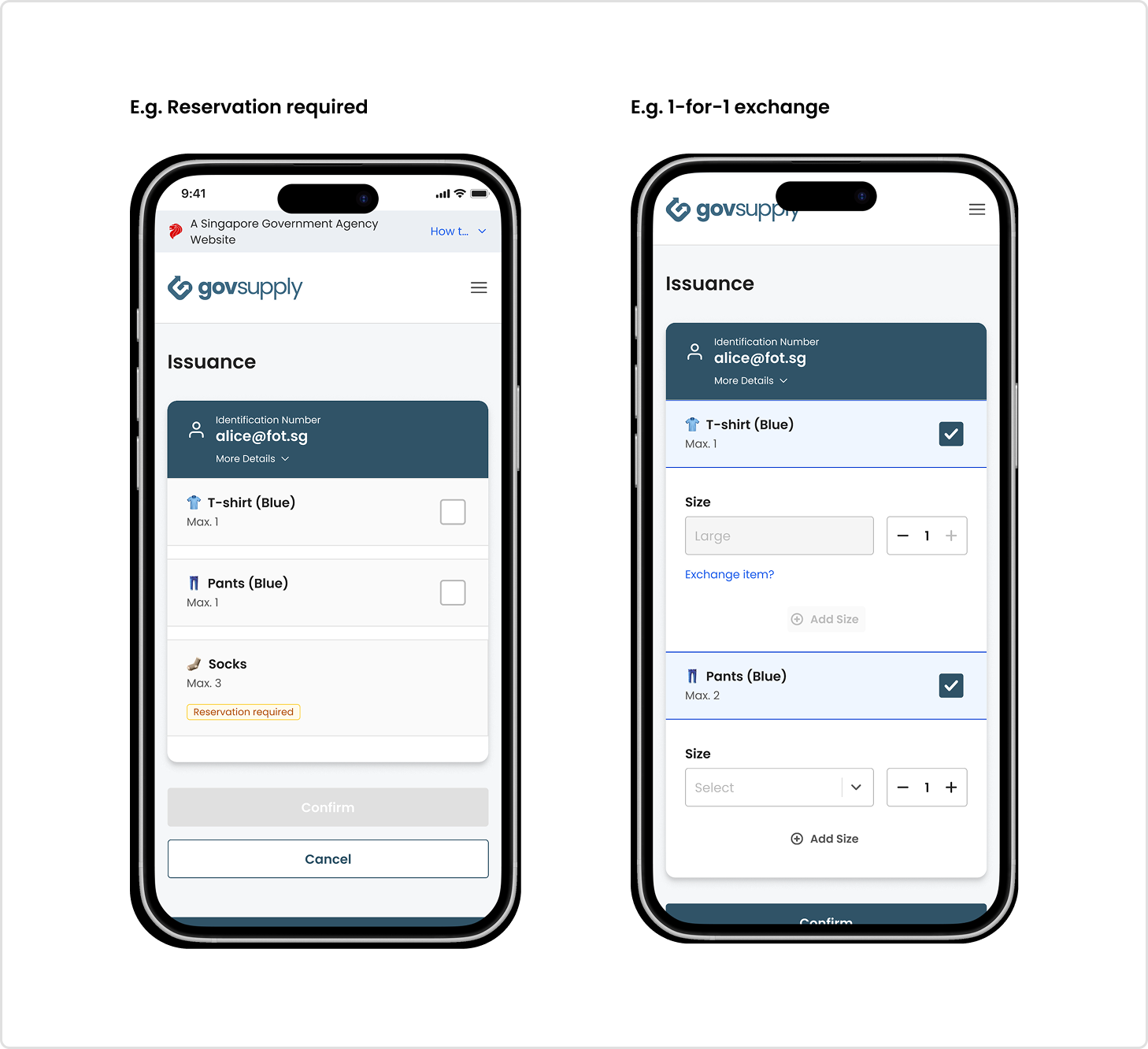
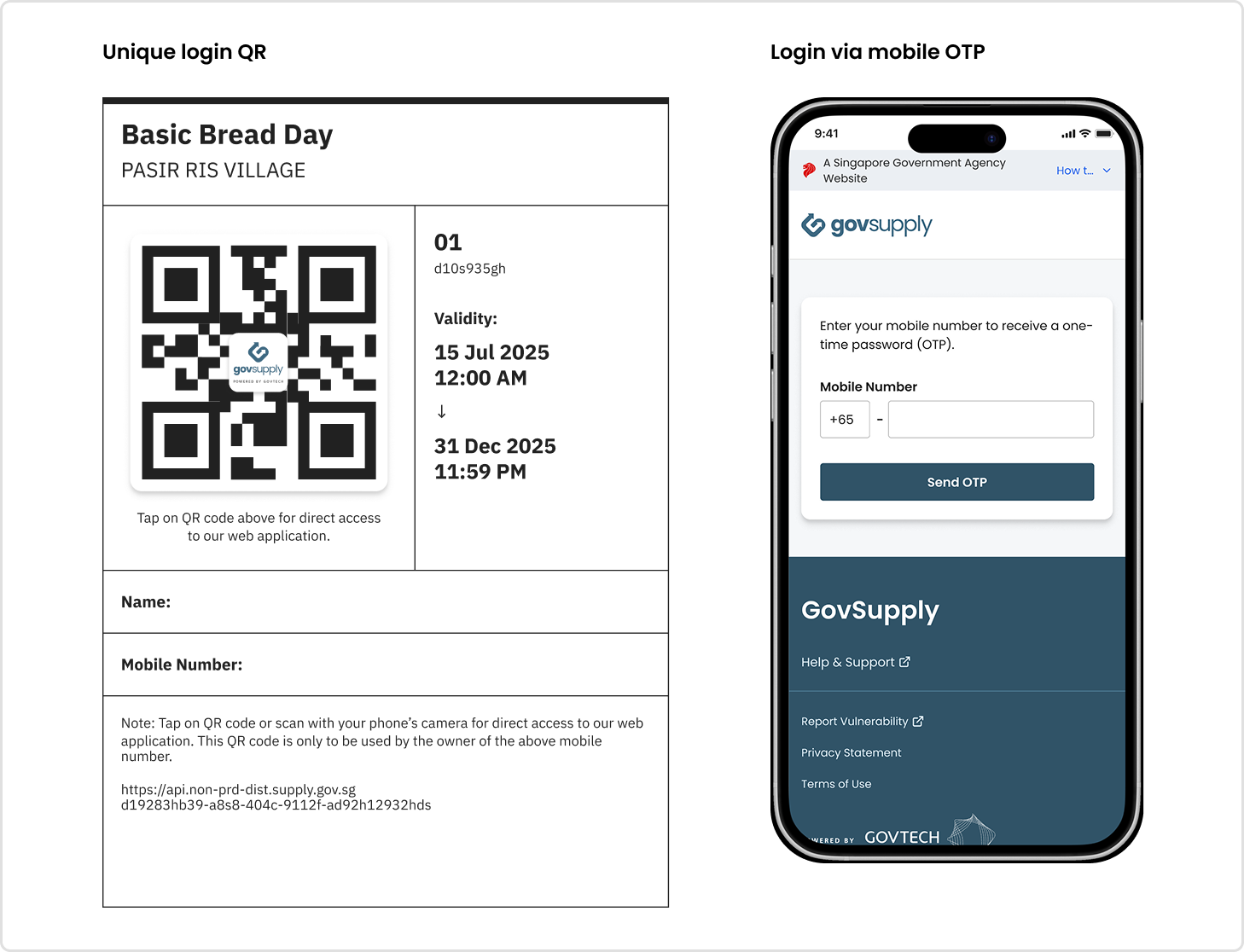
First, all volunteers helping with your distribution campaign should have a unique login QR. This allows them to enter and start using the GovSupply distribution app.
- For security purposes, each login QR is unique and will be tied to the volunteer’s mobile number i.e. can only be re-used by the same volunteer
- For questions on generating login QRs for your distribution campaign, refer to setup distribution points
Step 2: Identify Recipient’s Eligibility
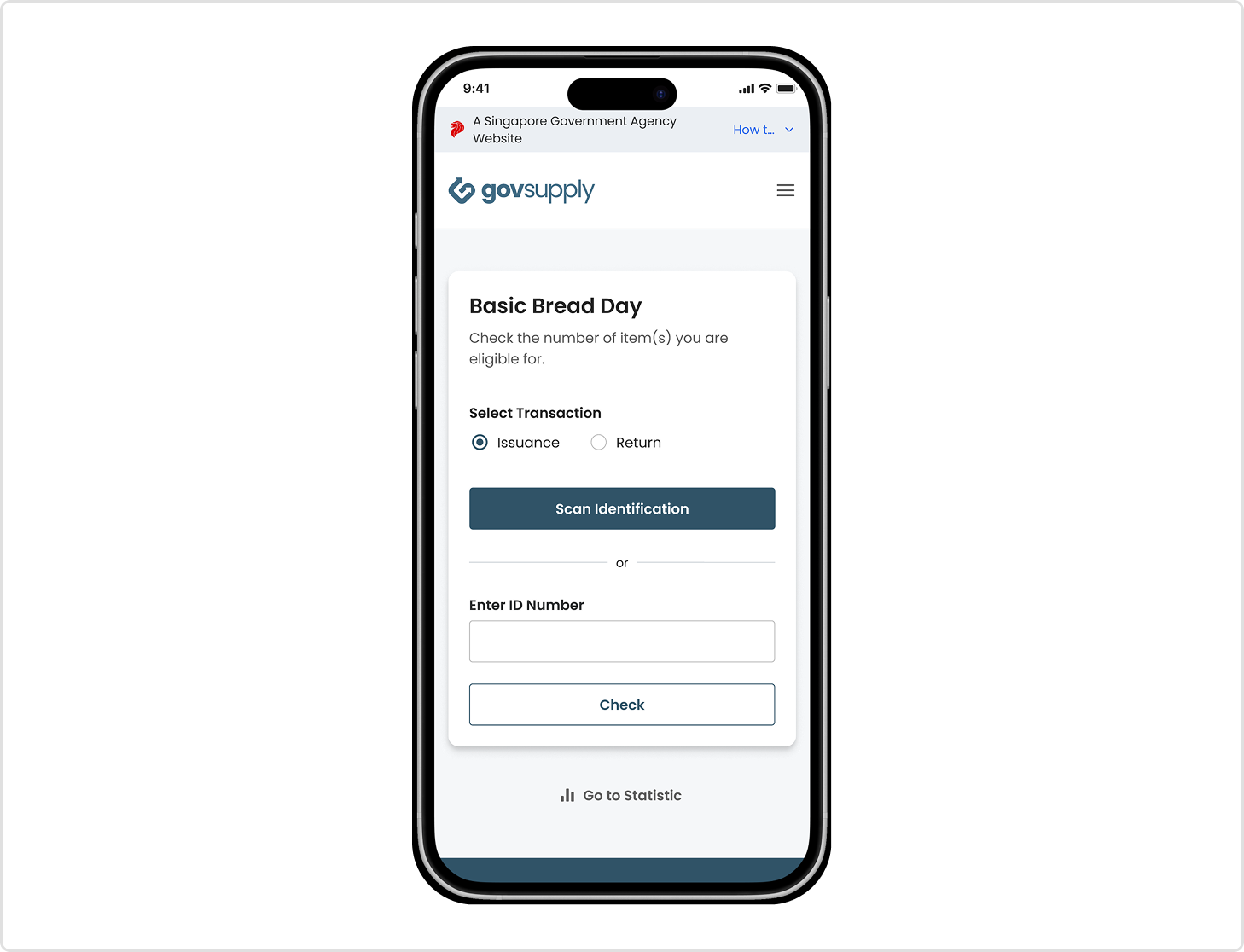
Enter recipient’s unique identification number via scanning or manual input. If the recipient is eligible, they should have been whitelisted during the campaign setup.
- For questions on whitelisting recipients for your distribution campaign, refer to setup recipients
Step 3: Select Items to Distribute
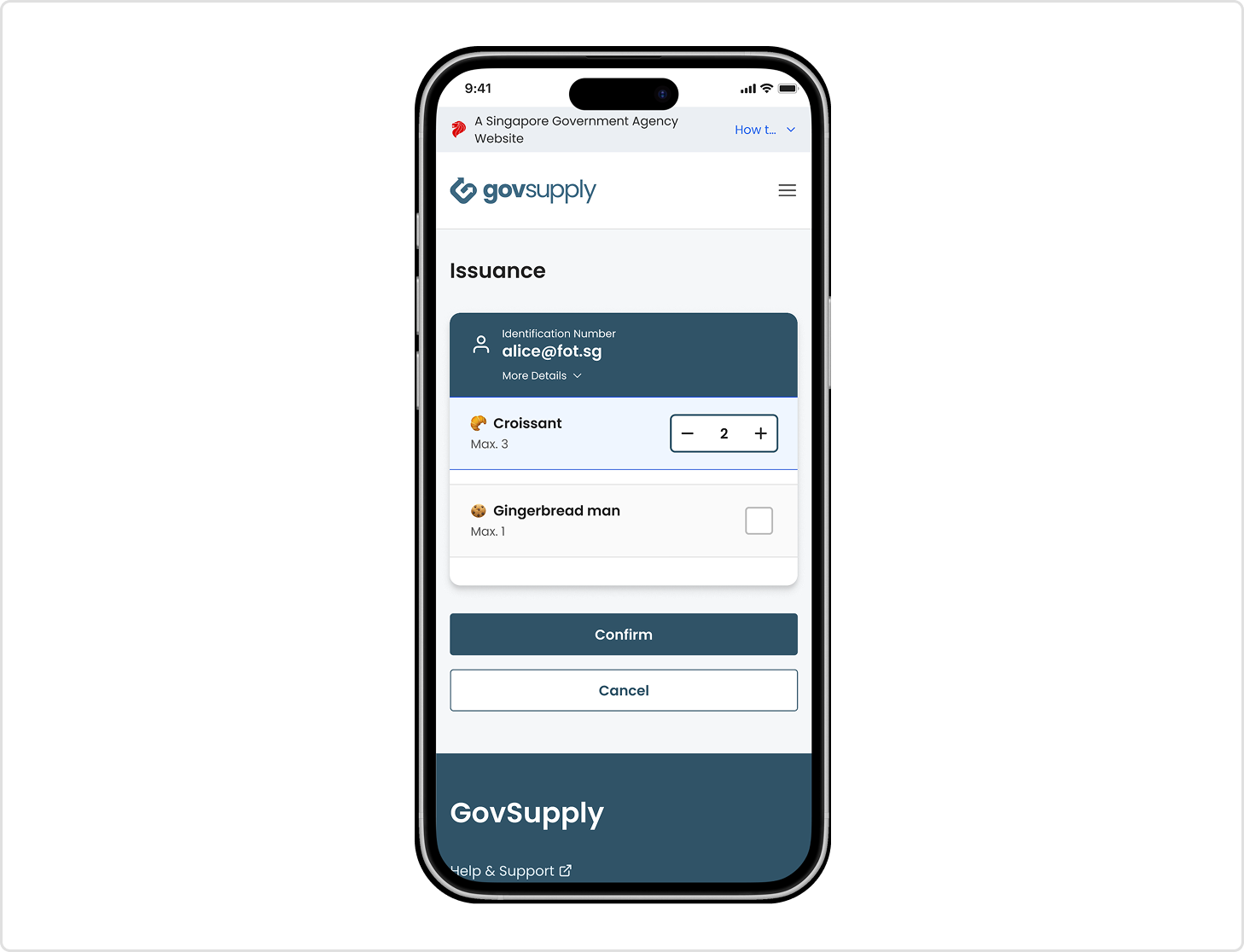
Select item and its quantity to distribute. You can select more than 1 item to distribute at one go.
- If item category has been added and disbursed correctly to recipient during the campaign setup, you will see it under the list of items that recipient is eligible to redeem
- For questions on adding items for your distribution campaign, refer to setup items
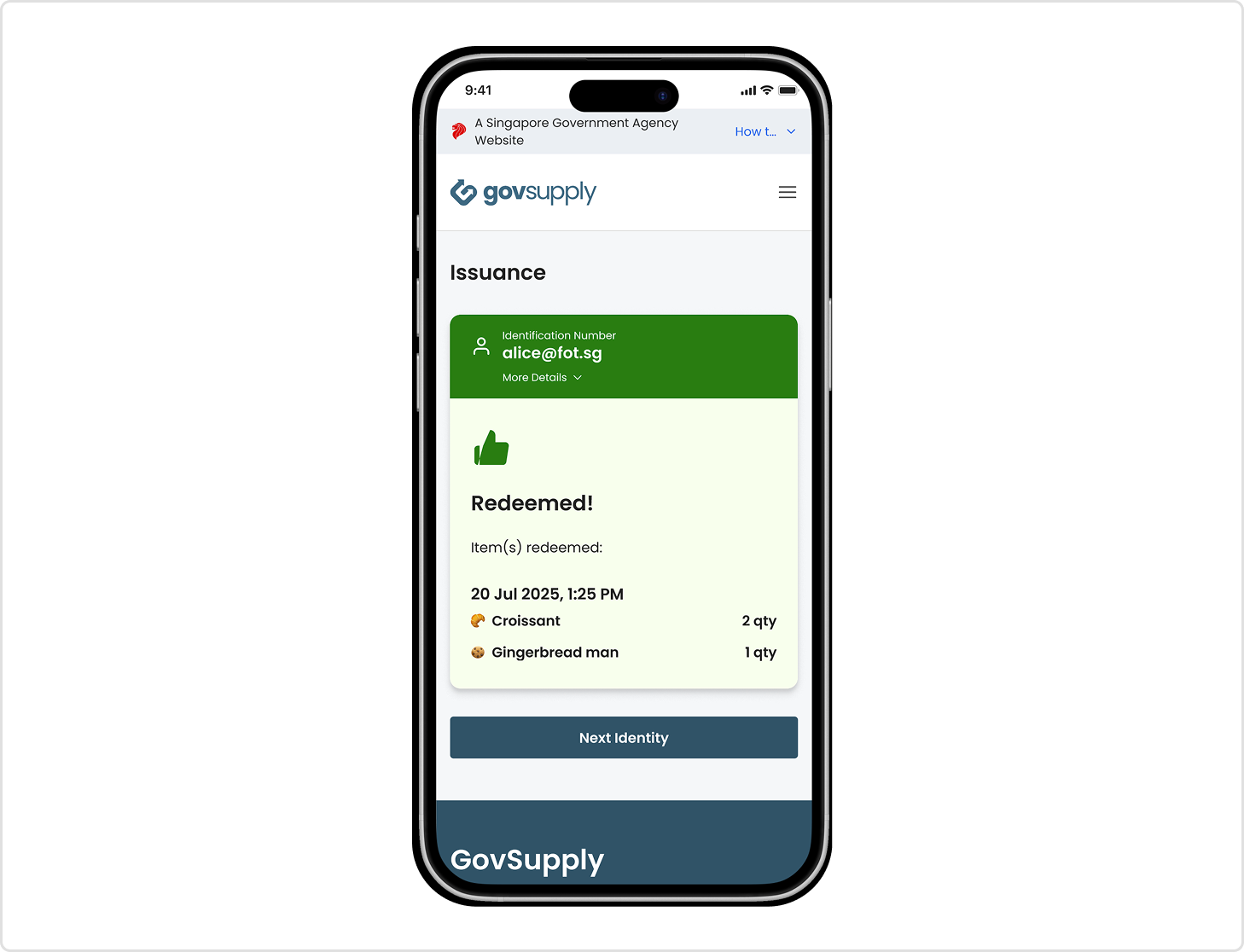
Step 4: Done and Distributed
Once confirmed, items to be distributed will be recorded in the distribution app. You can continue distribution to another recipient.
Use Cases
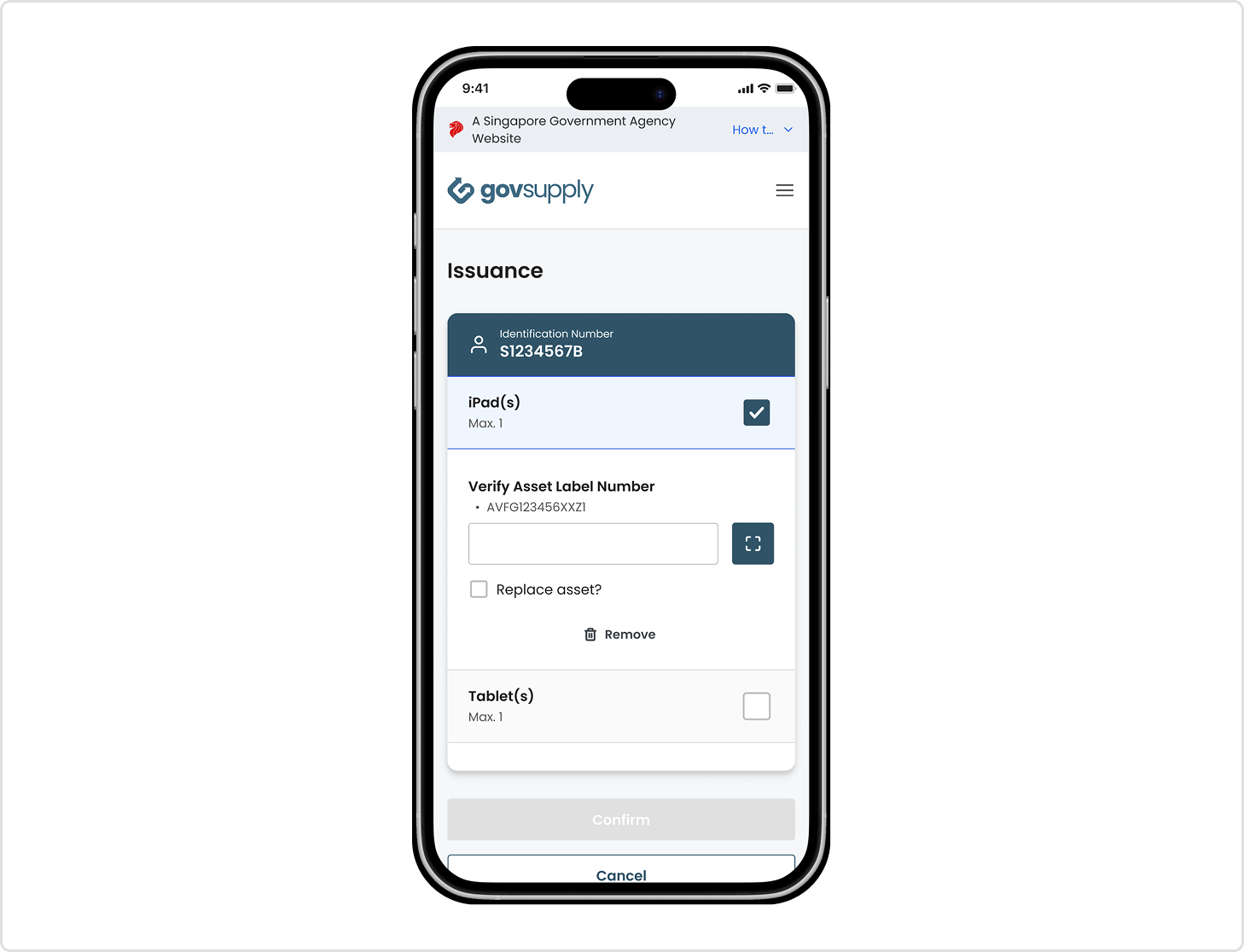
Unique Item Category
Available to anyone with the unique login QR code, when distributing from this item category,
- Volunteers need to input or scan the unique identifier (ID) that corresponds to the item itself.
- Unique IDs refers to barcodes and/or a string of characters that uniquely identifies each item.
Recurring Issuance Item Category
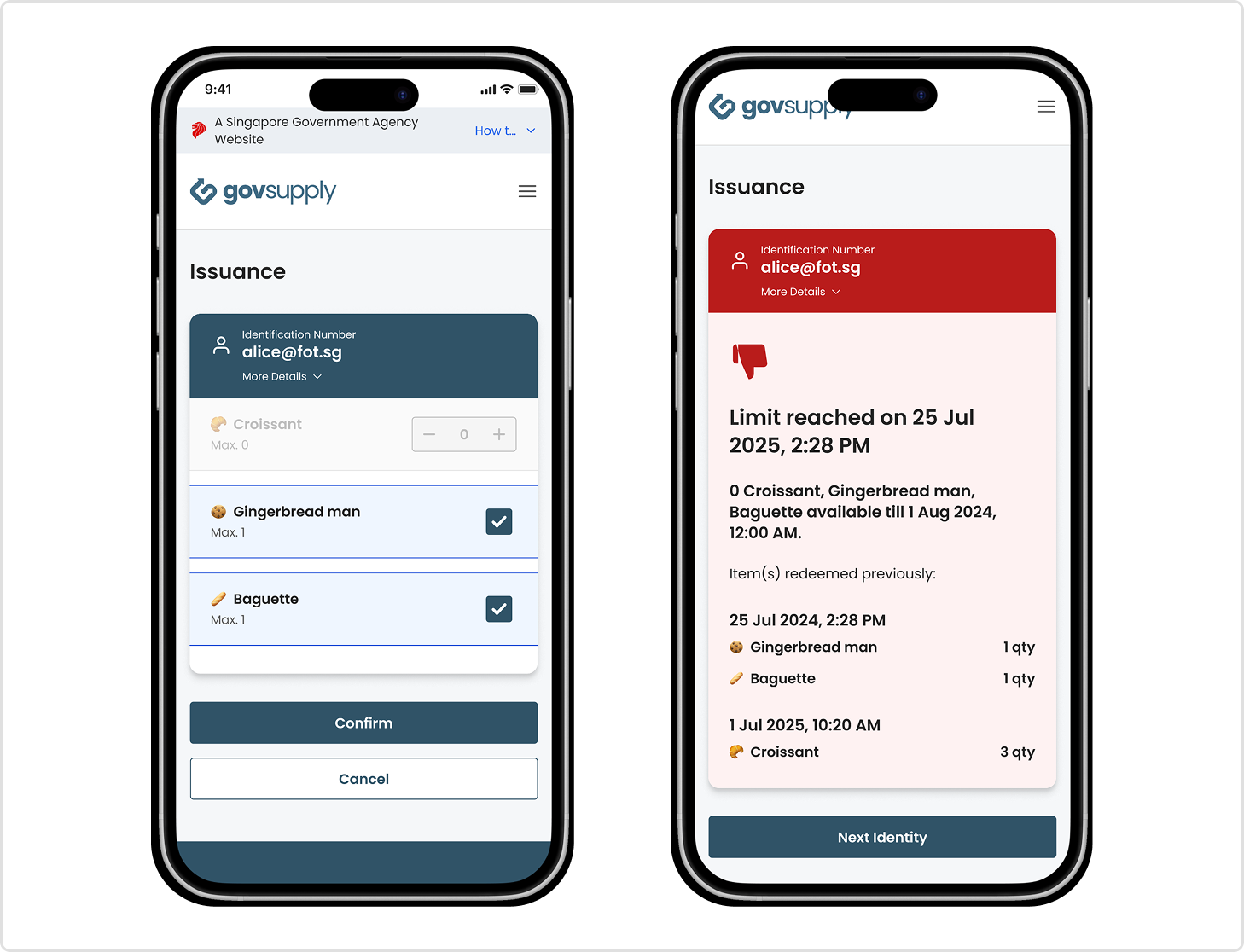
Available to anyone with the unique login QR code, when distributing from this item category,
- If the issuance limit has reached for the eligible recipient, volunteers will not be able to distribute the item from the distribution app.
Variant Item Category
Available to anyone with the unique login QR code, when distributing from this item category, volunteers can look out for 3 different types of distribution settings:
- Item is reserved for recipient
- Requires 1 to 1 exchange, for the reserved item
- If you see a yellow tag showing “Reservation required”, reach out to your administrator to ensure that a specific item is reserved for this recipient
- Item is not reserved for recipient but once distributed, it will be considered reserved under recipient
- Requires 1 to 1 exchange, for the reserved item
- Able to distribute from any available item variant that is available in the stockpile pool
- Item is not reserved for recipient
- Able to distribute from any item variant that is still available from the stockpile pool