Step-by-step implementation guide
Purpose
To provide clear guidance on implementing Standard Build Images (SBI) across supported cloud platforms, ensuring consistent security standards and efficient deployment processes.
Environments
Standard Build Image naming standard
Example:
GT_GCCS_StandardBuild_\<OS_System>_\<OS_Version>_\<COTS>_on_\<Date_YYYY-MM-DD>_\<time_HH-mm-ss>Note: Commercial Off-The-Shelf (COTS) is optional.
| OS System Full name | OS_System |
|---|---|
| Microsoft Windows Server | Windows |
| Red Hat Enterprise Linux | RHEL |
| Amazon Linux 2023 | AL2023 |
| Amazon Linux | AML |
AWS
Console
Login to AWS via GCC.
In the search bar, type “EC2“ and select it.
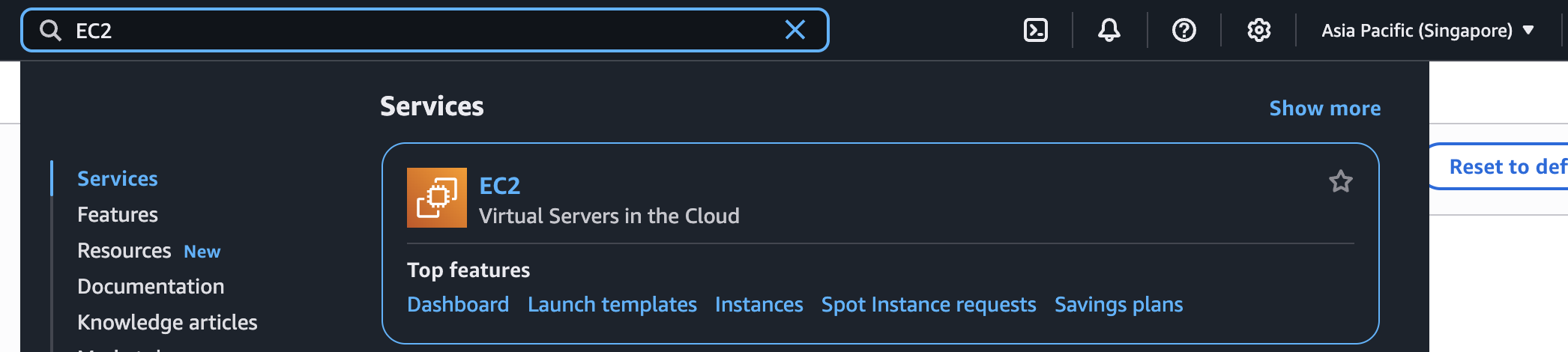
Ensure the selected region is set to Asia Pacific (Singapore).
Launch an instance. Under Application and OS Images (Amazon Machine Image), go to My AMIs → Shared with me.
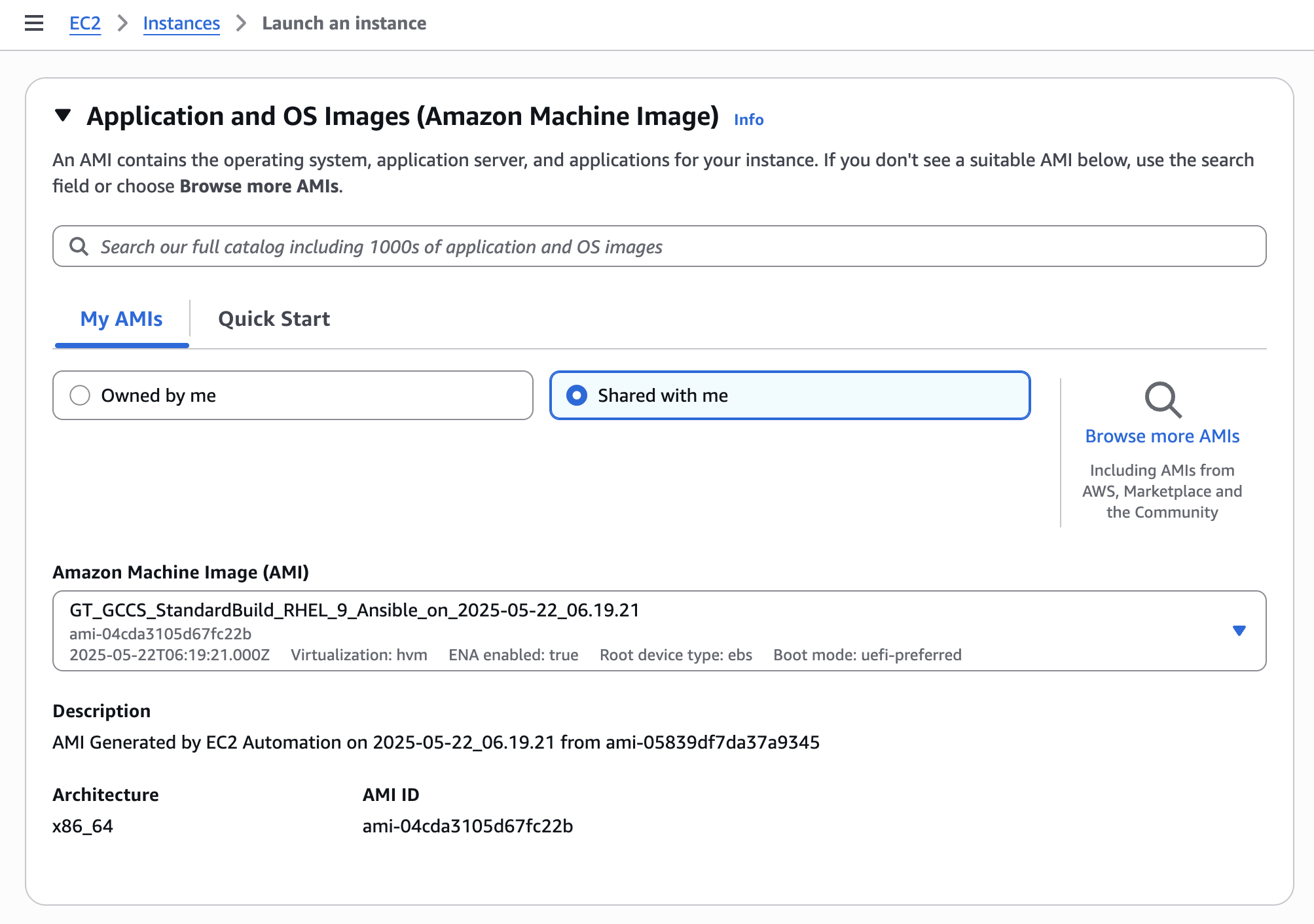
Select the SBI AMI flavour of your choice.
Terraform
Example for RHEl 9 Terraform AMI:
rhel9-ami-var.tf
# For RHEL 9
data "aws_ami" "latest_rhel89 {
most_recent = true
owners = ["self"]
filter {
name = "name"
values = ["GT_GCCS_StandardBuild_RHEL_9*"]
}
filter {
name = "state"
values = ["available"]
}
}main.tf
resource "aws_instance" "example" {
ami = data.aws_ami.latest_rhel9.id
instance_type = "t3.micro"
# ... other configuration ...
}Azure
Coming soon
GCC+
Coming soon