Log in to Kibana (Serverless)
This guide walks through how to access Kibana for a project provisioned via TechBiz, using Single Sign-On (SSO) through TechPass. It covers locating the correct Kibana URL for your project type in Console, and completing the SSO login flow to reach the Kibana landing page.
Who is this for?
Any user with a valid TechPass account who needs to access Kibana for a StackOps-provisioned resource.
Before you begin
Make sure you have the following:
- TechBiz access to the relevant StackOps Elastic Serverless resource.
- A valid TechPass account.
Step 1: Locate the Kibana URL in Console
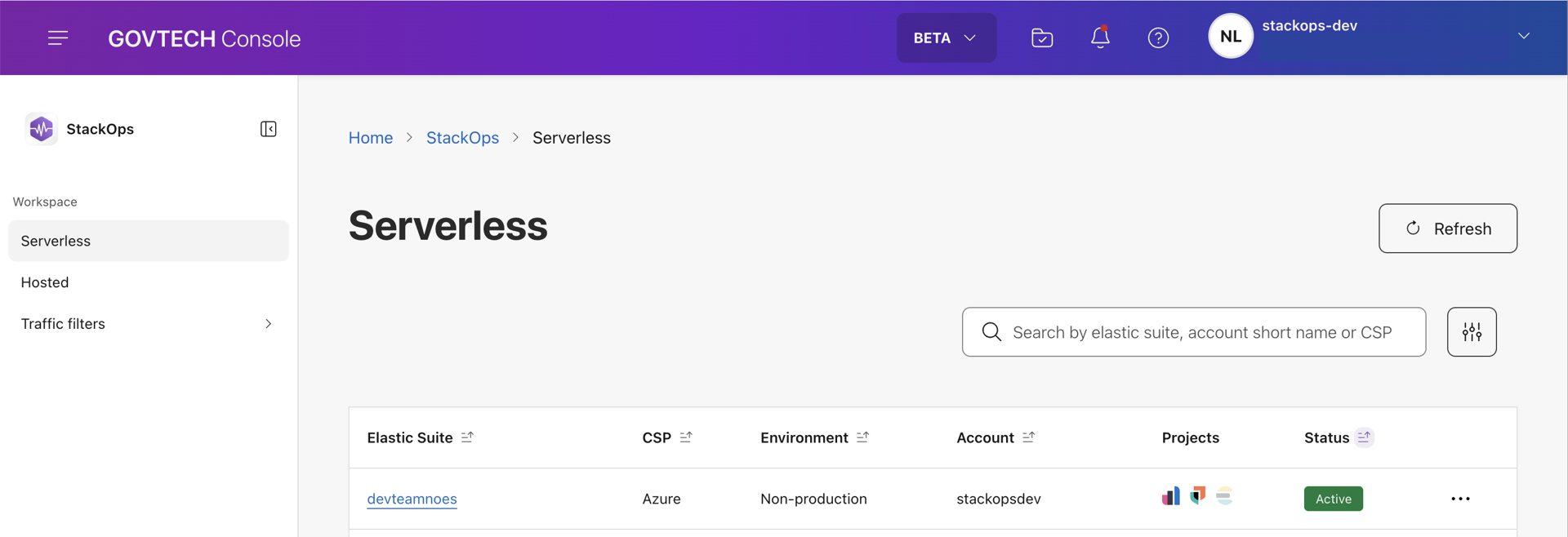
In the Console, go to Serverless and click the name of your Elastic Suite.
Under Projects details, each project type provisioned for this Elastic Suite is shown as a tab. In each tab, that project type’s Kibana URL is listed under Endpoints.
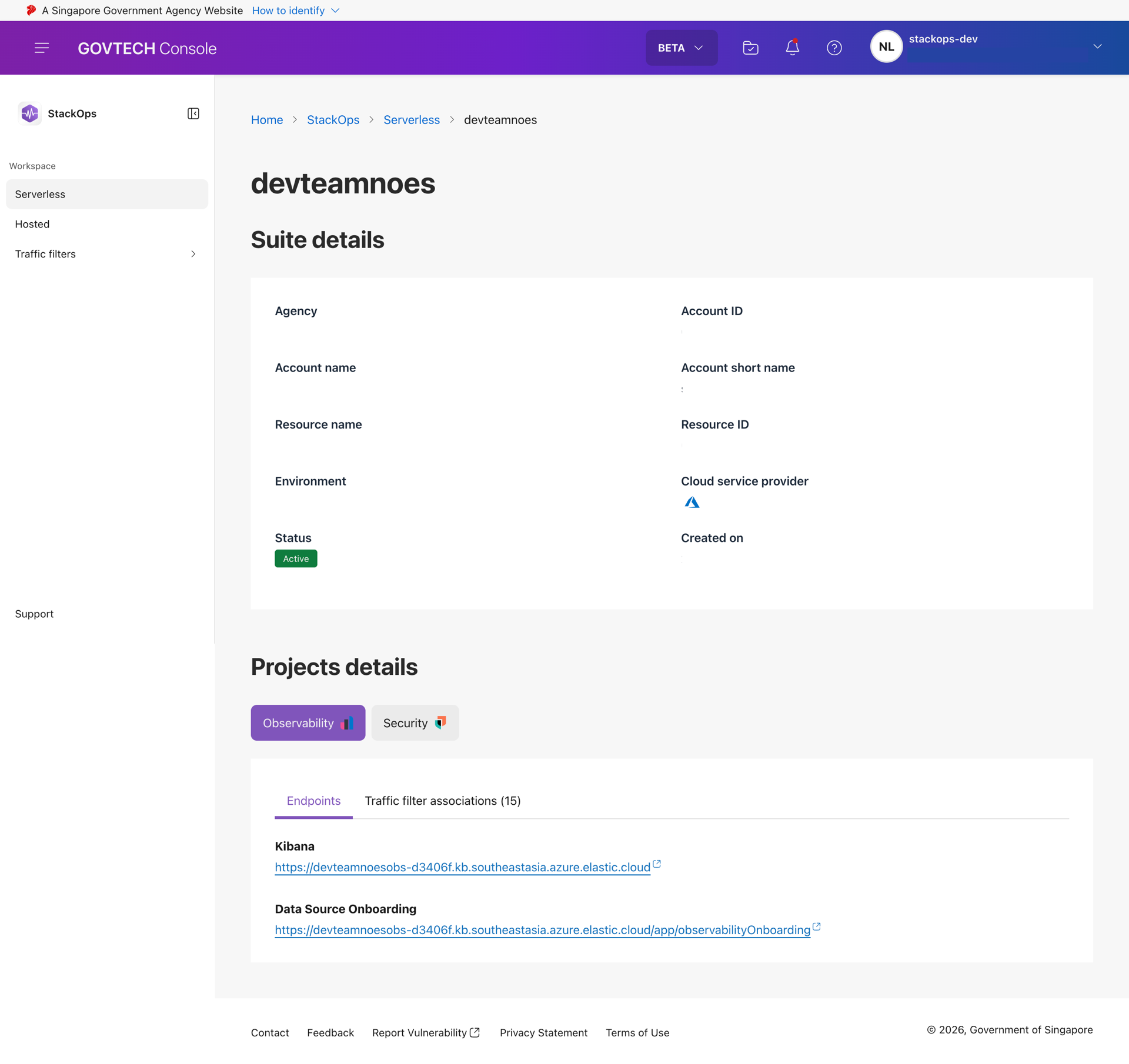
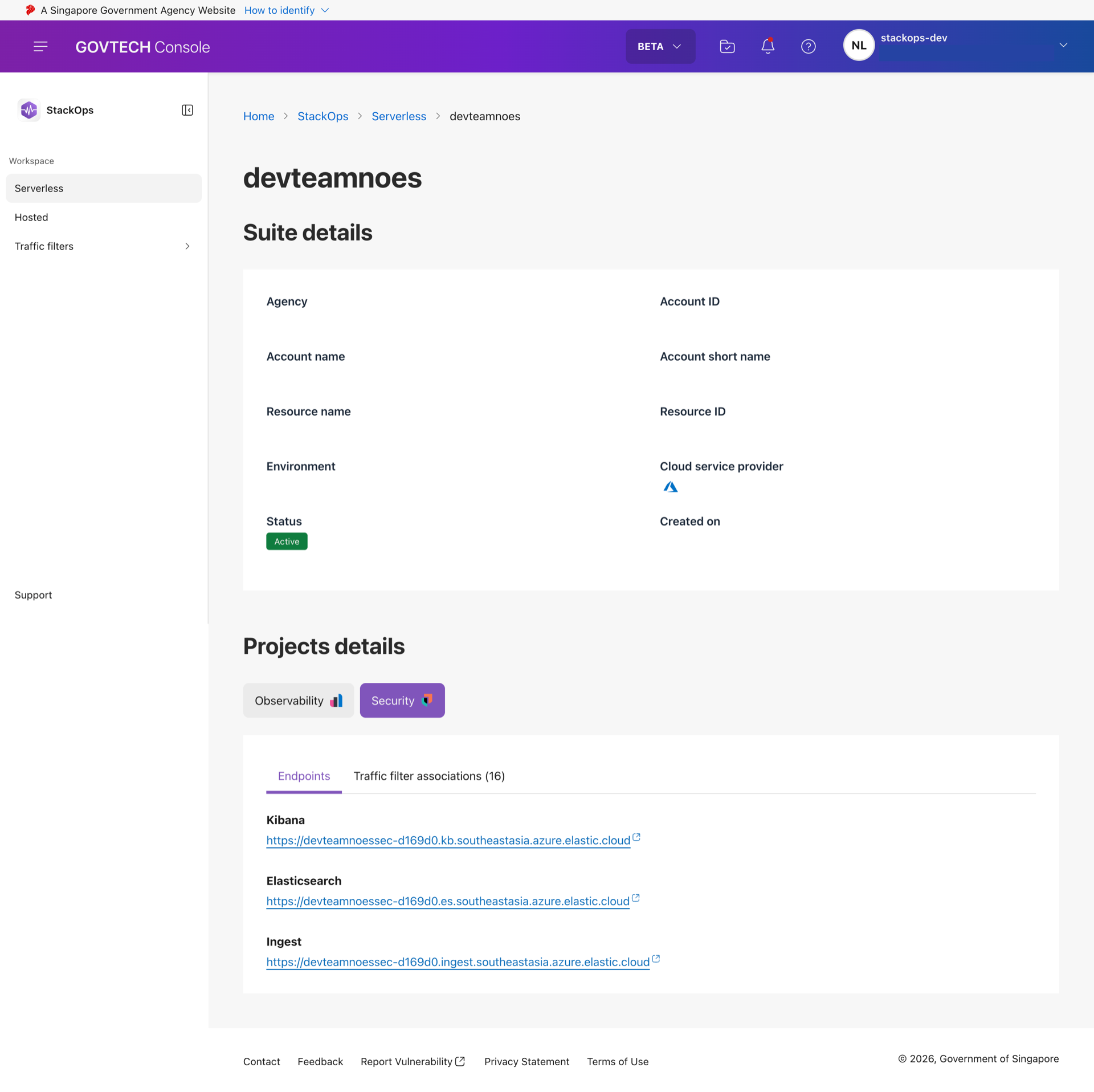
Copy the Kibana URL you need.
Step 2: Log in with SSO
Paste the Kibana URL into a new browser tab.

On the login page, click SSO.
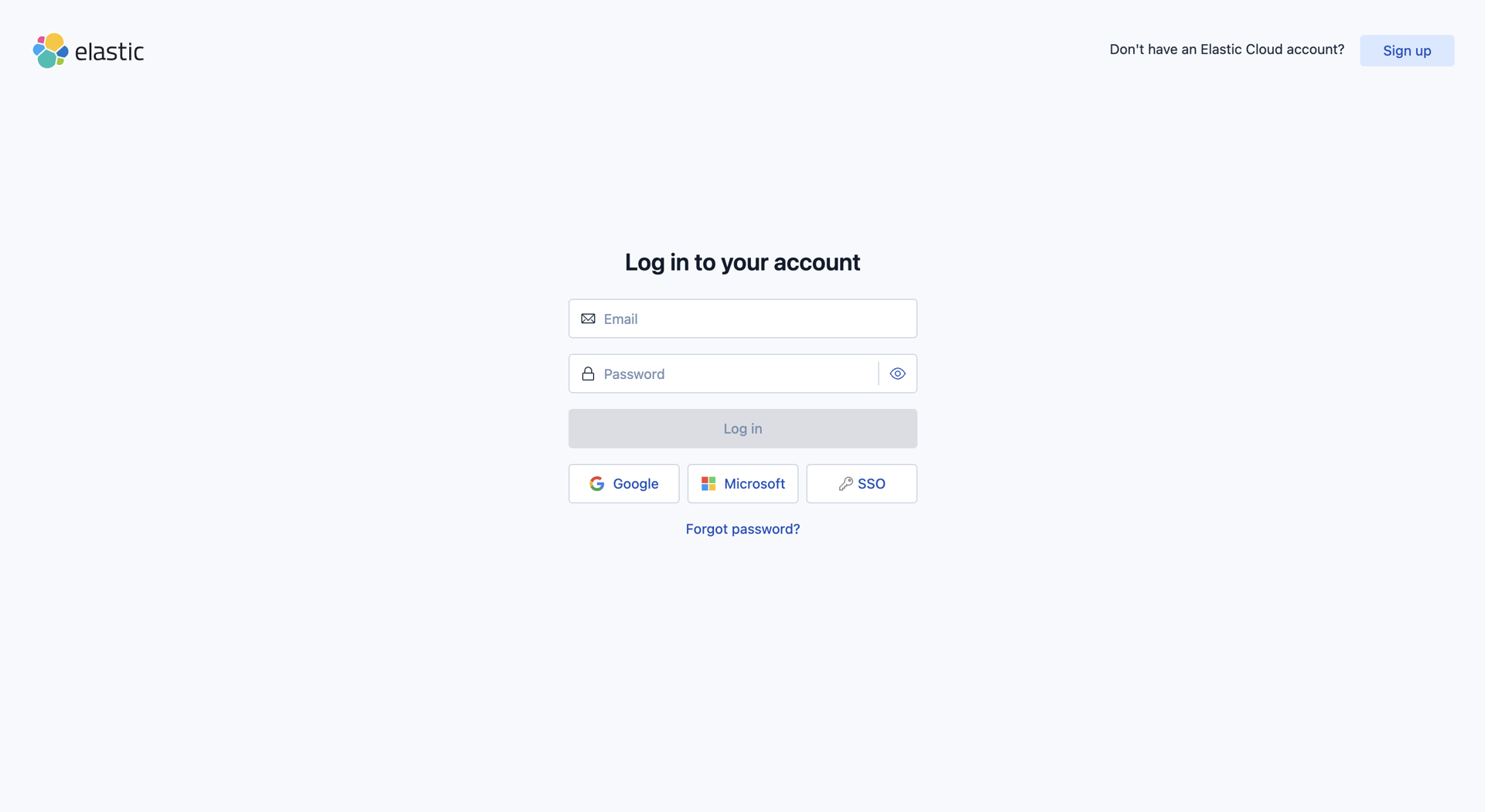
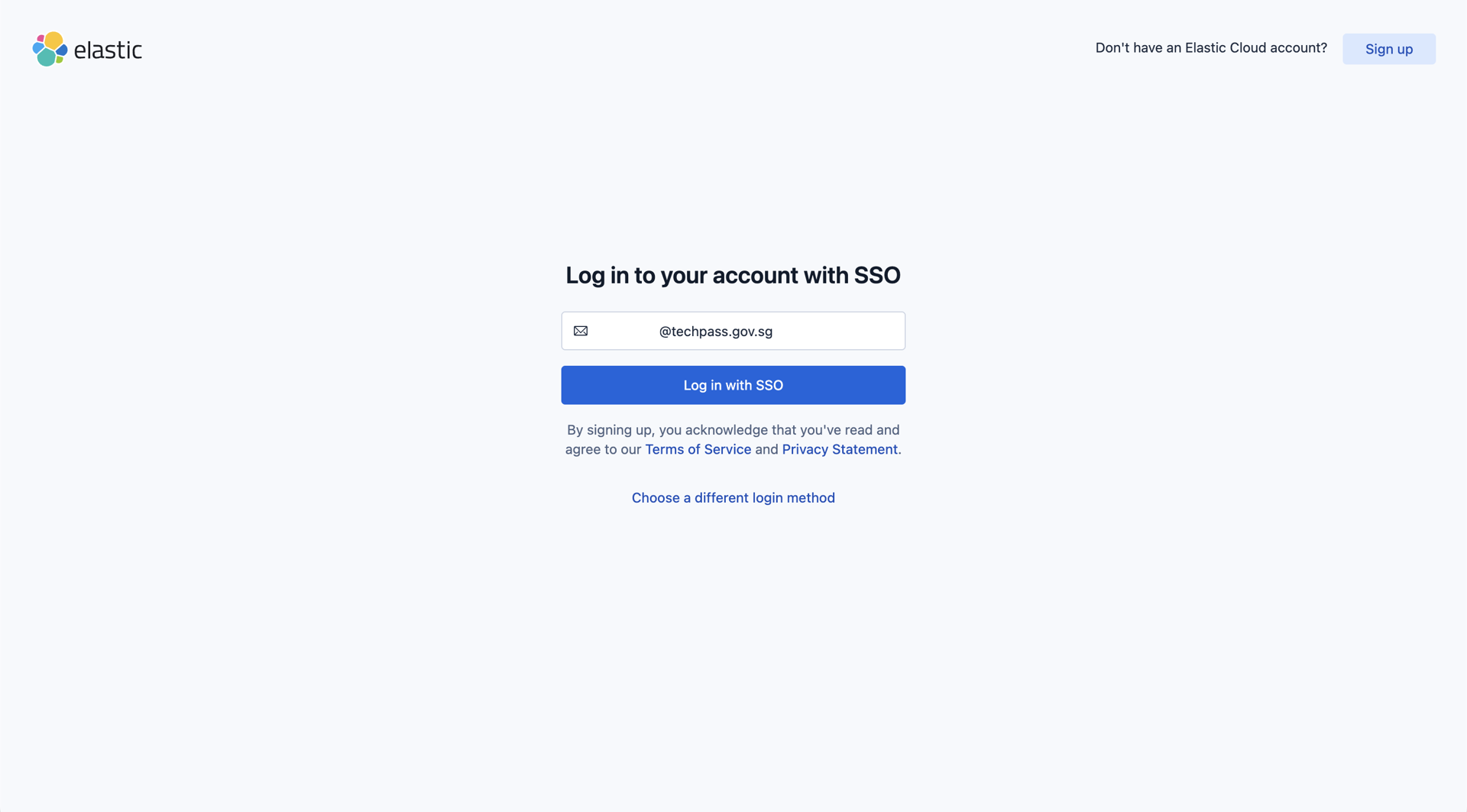
In the SSO login form, enter your TechPass email (@techpass.gov.sg).
Check that StackOps is selected as the organisation in the dropdown menu. It is selected by default.
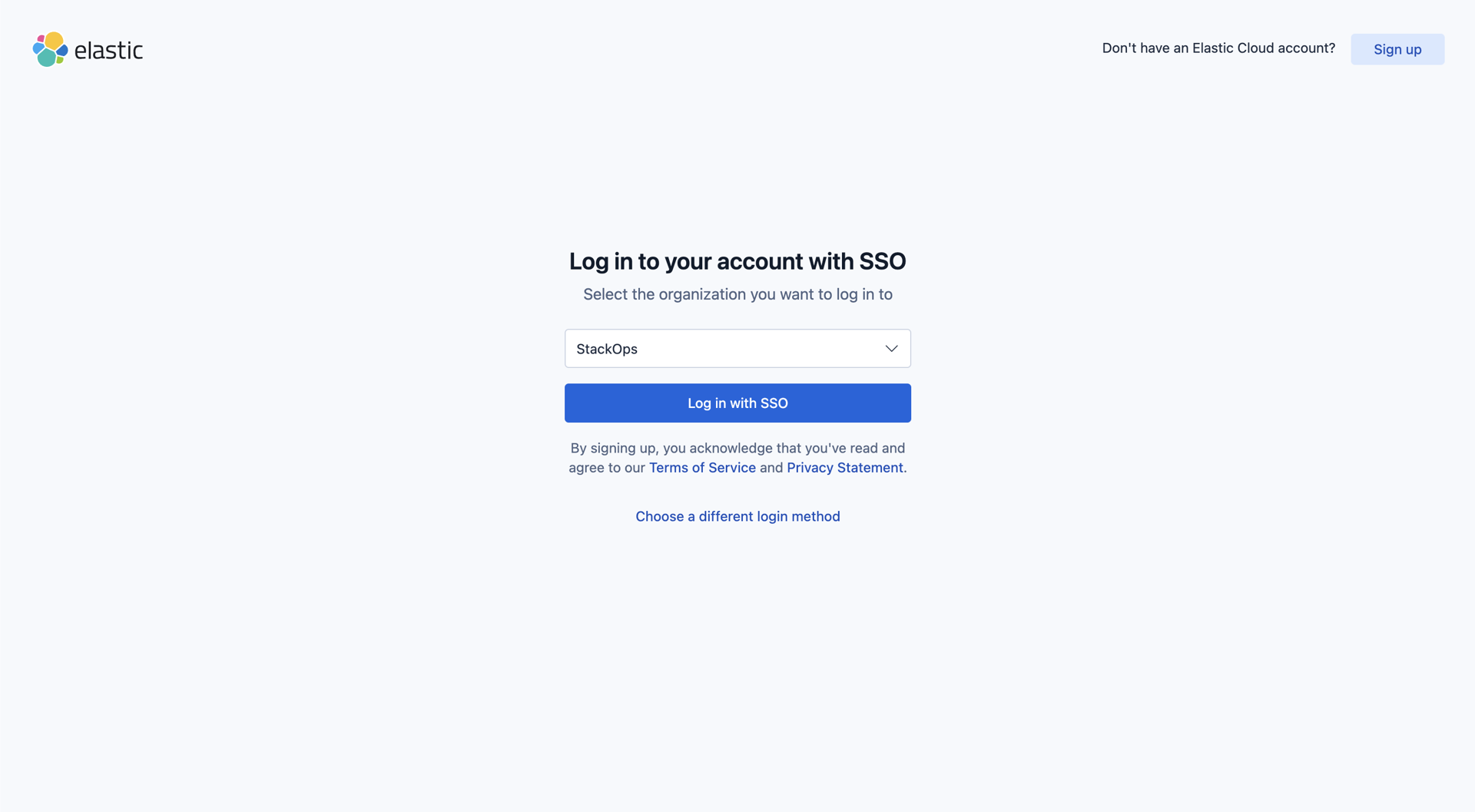
Click Log in with SSO.
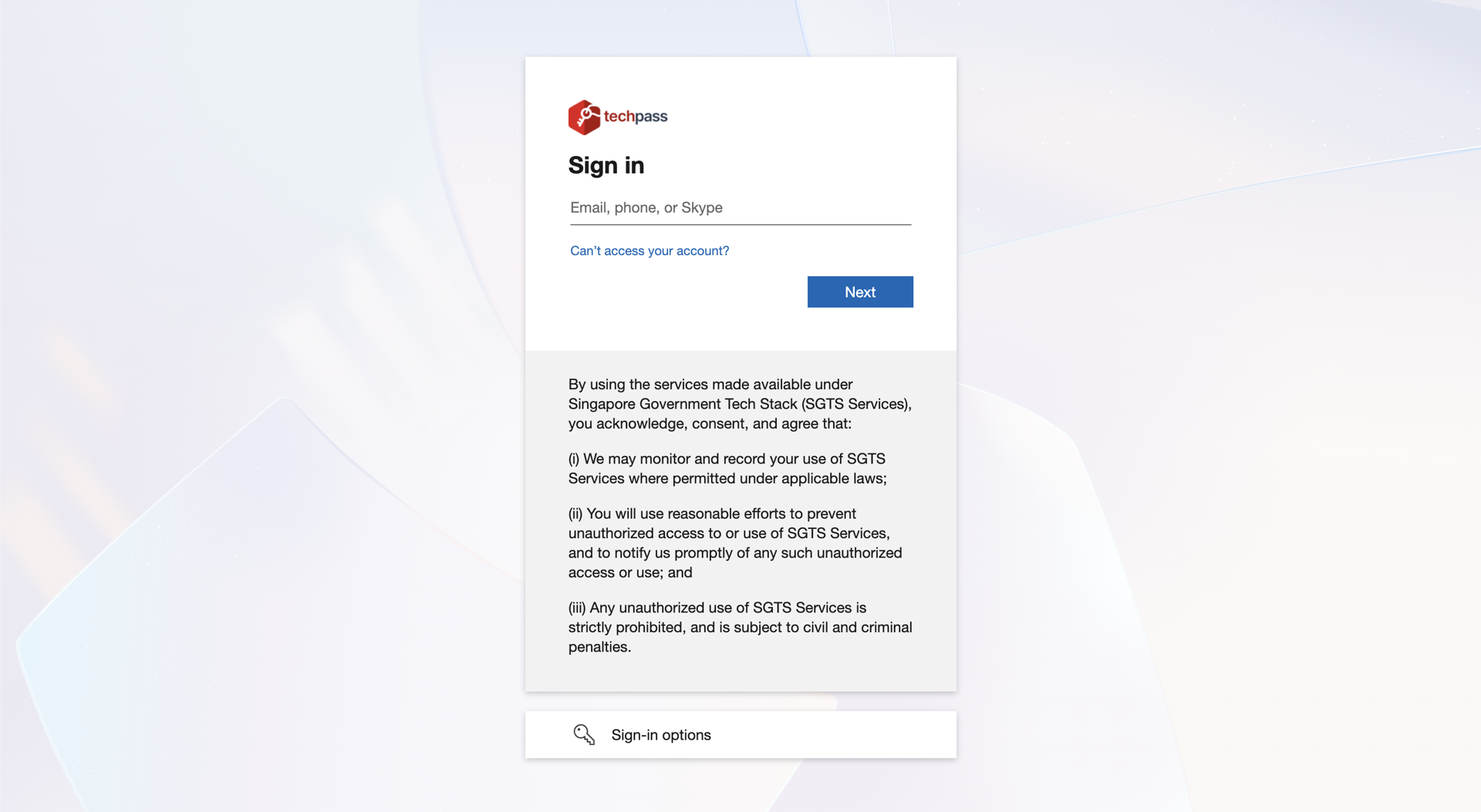
Log in to TechPass as usual.
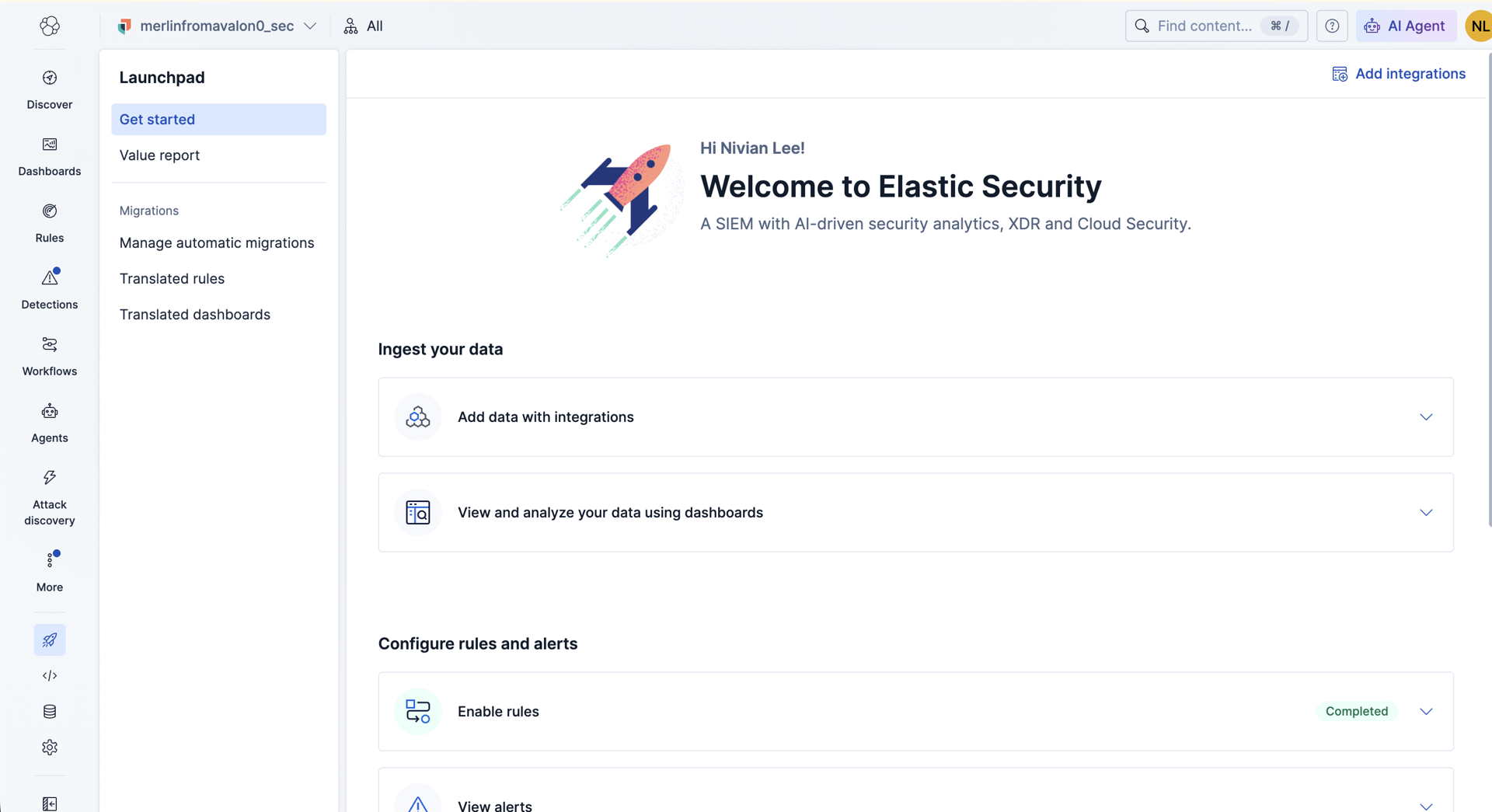
Once you are logged in, you will be taken to the Kibana landing page.
Troubleshooting
| Issue | Resolution |
|---|---|
| Unable to see the Kibana URL in Console | Ensure your Elastic Suite’s status is Active. If the issue persists, raise a support request. |
| SSO login fails | Verify you are using the @techpass.gov.sg email format, not your organisational email domain. |
| Organisation dropdown does not show StackOps | Ensure you are accessing the correct Kibana URL provided in Console. |
Next steps
To set up monitoring, follow the Serverless Trial Guide.