Confluence FAQs
Atlassian account
No, it is not mandatory to have an Atlassian (Jira & Confluence) licence from a SHIP-HATS subscription to submit a support ticket. For more details, refer to our Contact us documentation.
When you are provisioned an Atlassian (Jira & Confluence) licence via Console, you can create an Atlassian account using the email address linked with your TechPass. This is a SHIP-HATS Atlassian account.
If you create an Atlassian account using any other email address that is not linked to your TechPass, it is not a SHIP-HATS Atlassian account.
If you do not have a SHIP-HATS Atlassian account, you can still submit SHIP-HATS support requests using one of the following:
- Your personal Atlassian account
- An Atlassian account provisioned by your organisation (if applicable)
SHIP-HATS does not require two-step verification (2FA) for Atlassian accounts, and we recommend skipping this step during account setup.
However, if you’re using a personal or organisation-provided Atlassian account that has 2FA enabled, and you’ve lost access to your authenticator app or recovery codes, refer to Atlassian’s Login issues related to two-step verification documentation to regain access.
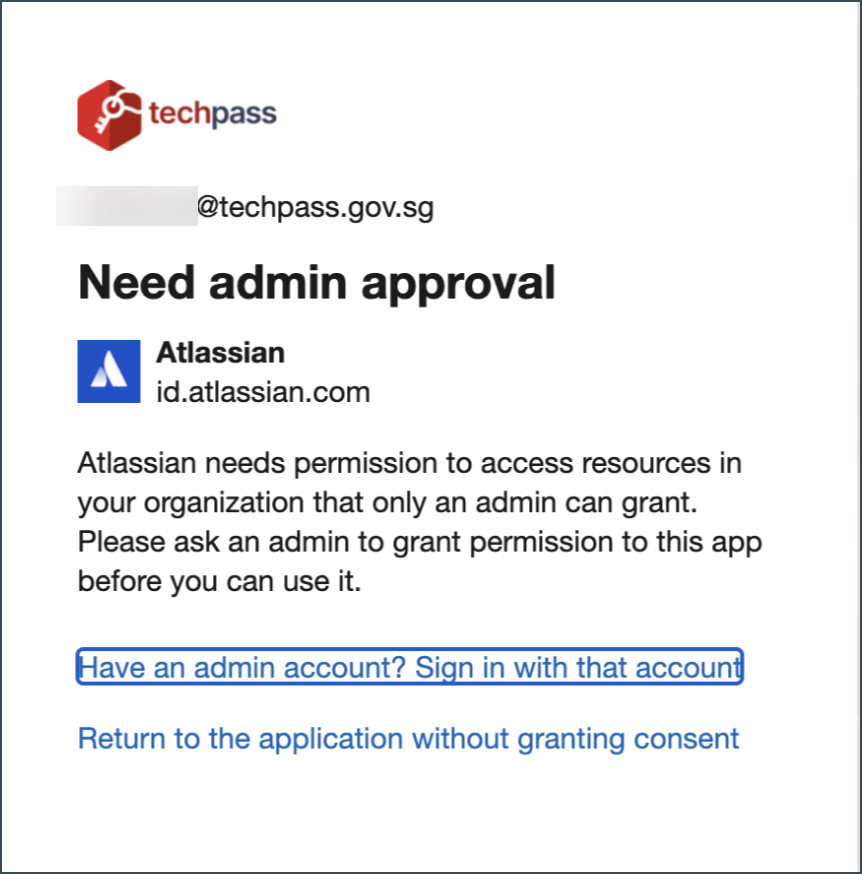
This message usually means your organisation manages its Atlassian accounts and enforces its own login method (IDP), such as a custom SSO. As a result, Microsoft login flow may not be permitted for your Atlassian account.
Workaround:
- Log in using the Atlassian email and password or SSO if its enabled for your organisation’s Atlassian account.
- After logging in, you will still need to authenticate with TechPass to access SHIP-HATS projects.
Note: This error does not indicate an issue with TechPass. It relates to how your organisation manages Atlassian account authentication.
A user may appear as Unlicensed if:
- Their Atlassian account has been suspended. SHIP-HATS- provisioned Atlassian account will be suspended if the user has not logged into Atlassian services for 90 consecutive days. Such users can Reactivate suspended Atlassian account.
- They have been offboarded from the SHIP-HATS subscription, but the user record has not yet been cleaned up by automation.
If you are Subscription Admin (SA), you can go to Console to verify if the user has been assigned an Atlassian licence. Alternatively, users can go to Console and verify if Atlassian licence is assigned to them.
If an Atlassian license has been assigned but the user still appears as Unlicensed, it could be because their Atlassian account was suspended due to inactivity for 90 consecutive days. If their Atlassian licence is from SHIP-HATS, users can try reactivating their SHIP-HATS’ Atlassian account.
This issue can occur during Atlassian account sign-up or password recovery (“Can’t log in”).
If you are using a non-COMET device
Try the following:
- Use incognito / private mode
- Try a different browser
- Disable browser extensions
- Switch networks or disable VPN
These steps may help if the issue is browser-related.
If you are using a COMET device
reCAPTCHA verification may fail due to Menlo Security Safe Access restrictions.
In this case, try the following workaround:
Workaround:
- Complete the account setup or password reset on a non-COMET device
- If a non-COMET device is unavailable, contact SHIP-HATS Support for assisted onboarding.
For general information on reCAPTCHA in Atlassian Cloud, refer to: https://confluence.atlassian.com/jirakb/how-recaptcha-works-in-jira-cloud-1345825019.html

If you see this error, you will not be able to authenticate using TechPass.
Possible reasons
Conflicting SSO configuration prevents successful authentication of your login.
Resolution
If you see this error message, either watch this video guide or complete the following steps:
Click Sign out to protect your account.
Click Use another account.
 .
.Enter your TechPass ID and click Next. For example,
jane_doe@techpass.gov.sg.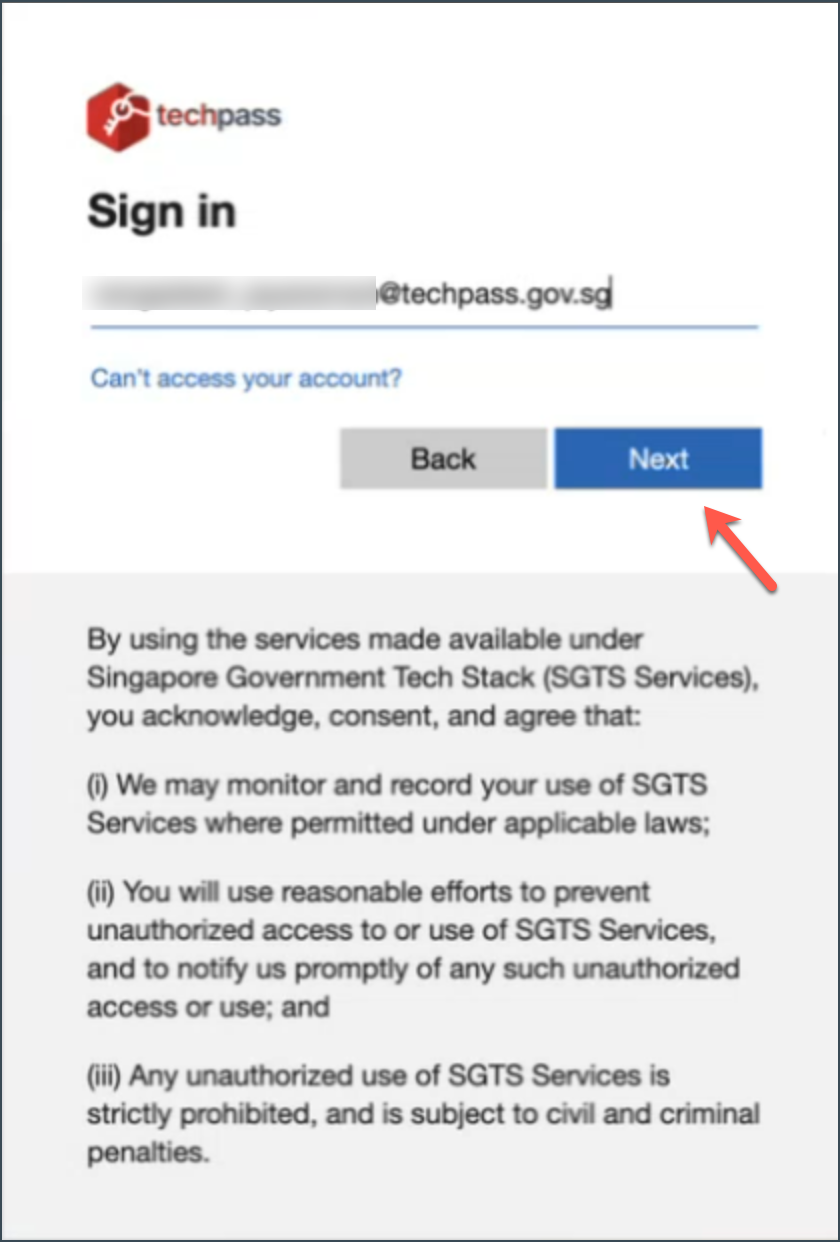
Your TechPass ID is the User Principal Name listed in your TechPass Profile. To find this, log in to the TechPass portal and go to your Profile.
Enter your TechPass password and click Sign in.
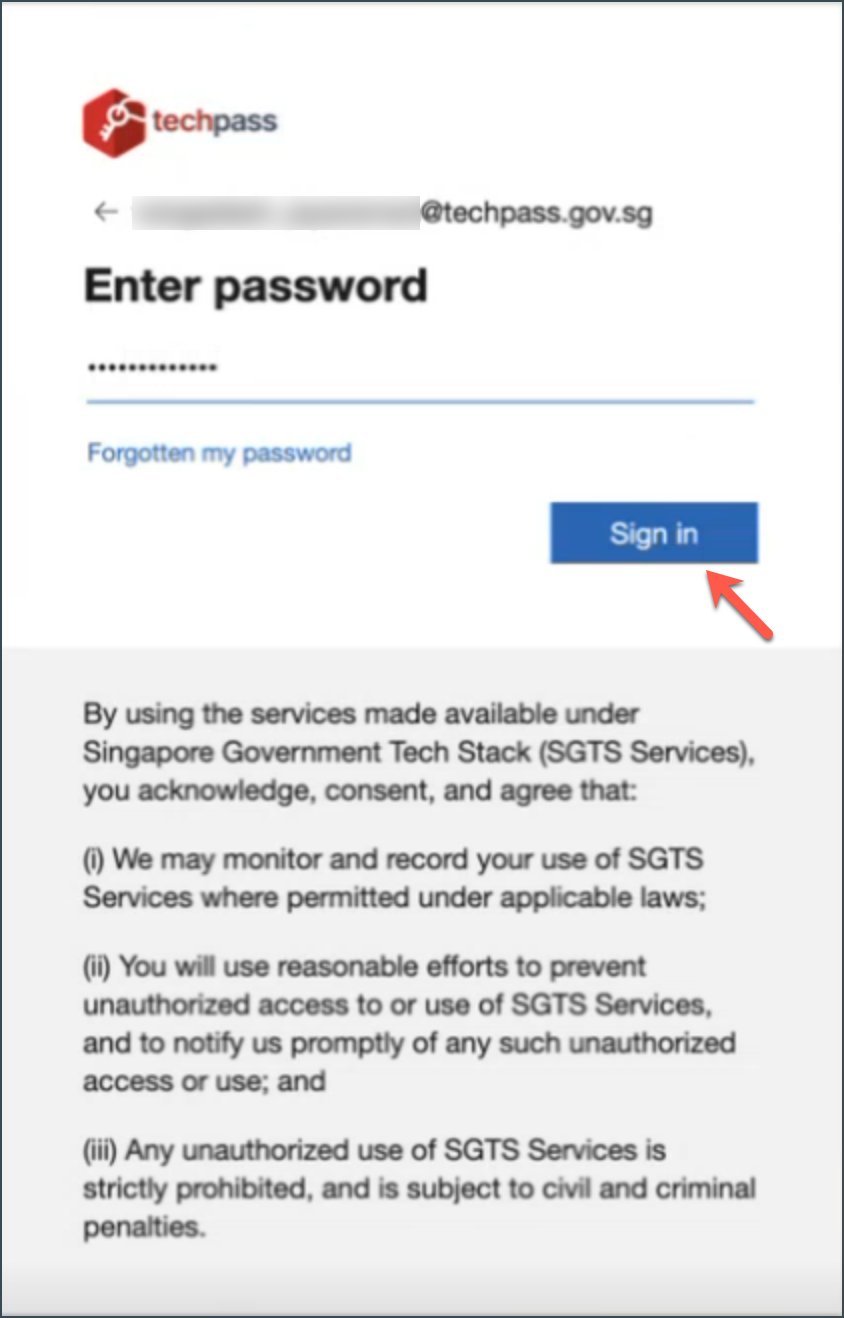
When you have successfully authenticated, you will be able to access Jira Cloud and Confluence Cloud.
- Verify if your Atlassian (Jira & Confluence) licence is paid by a SHIP-HATS subscription account.
- Choose one of the following options as required:
If your Atlassian (Jira & Confluence) licence is managed by SHIP-HATS, submit the SHIP-HATS Atlassian User Account Reactivation Formto reactivate your account.
If your licence is NOT managed by SHIP-HATS, contact Atlassian support since SHIP-HATS cannot reactivate non-SHIP-HATS Atlassian accounts.
- The following resolution is applicable only if your Atlassian (Jira & Confluence) licence is managed by SHIP-HATS.
- For other Atlassian accounts, you should contact Atlassian support.
If you encounter one of the following error messages while logging in to Confluence, Jira, or JSM customer portal, it means your account has been suspended.

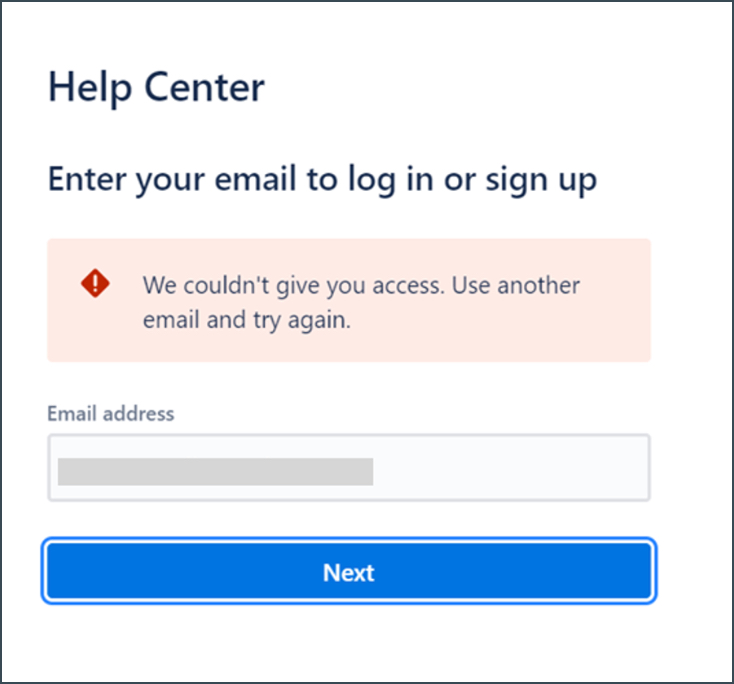
Submit the SHIP-HATS Atlassian User Account Reactivation Form and it will be reactivated immediately.
Possible reasons
You could have entered an incorrect email address or password.
Resolution
Click Can’t log in.

Enter the email address linked to your TechPass account and click Send recovery link. You’ll receive an email with instructions to reset your password.

If you are using your personal or other Atlassian account (not SHIP-HATS Atlassian account), ensure you are using the correct email address associated with that account.
- Follow Atlassian’s instructions and reset password.
- Log in with the updated password.
- If you have not received the recovery email, contact Atlassian support.
Possible reasons
- You may be using incorrect email address or password.
- If your Atlassian (Jira & Confluence) licence is managed by a SHIP-HATS subscription, you may have issues with your TechPass account.
- Your SHIP-HATS Atlassian account could be suspended. To reactivate this account, submit the SHIP-HATS Atlassian User Account Reactivation Form.
Troubleshooting steps
- Ensure you are using the correct email address associated with your Atlassian account.
- Ensure you are using the correct password.
- If you are unsure about the password:
a. Visit the Atlassian password reset page.
b. Follow the instructions to reset your password.
c. Log in with the updated password. - If you have issues in authenticating your login via TechPass, refer to TechPass issues section.
The extra steps are due to our implementation of external user security, which accommodates users from different agencies and email domains. For more details, refer to Atlassian’s External User Security.
Access and permissions
If you can log in to your Atlassian account but cannot see any Jira projects or Confluence spaces, confirm if you have been assigned an active Atlassian (Jira & Confluence) licence.
The ability to save your username and password depends on your device’s settings and browser configurations. If you are unable to use a password manager on Google Chrome, please consult your IT support team for further assistance.
Yes, you can restrict access to sensitive information in Confluence. Space admins can set permissions to control who can view and edit pages within a space, ensuring that only project members have access.
Yes, While one Atlassian ID can be associated with multiple organisations as long as the email is linked to a valid TechPass account and is onboarded to SHIP-HATS, they can still access it. One Atlassian ID can be associated with multiple Atlassian organisations.
Space management
Personal space creation is controlled by global permissions. In our Confluence setup, all users are allowed to create personal spaces. You can create your personal space by referring to customise your personal space. If you encounter any issues, contact the site admin. For more on managing global permissions, refer to Manage global permissions.
The Presenter mode is typically accessed by clicking the “…” button in the top-right corner of a Confluence page and selecting “Presenter mode”. If you’re unable to see this option, it may not be enabled for your instance. Check with your Confluence admin to confirm whether the feature is available for your organisation.
Yes, you can use templates from the template library and create your own custom templates. However, templates in the library are shared and cannot be customized for individual use. For more details, refer to Confluence support.
Jira and Confluence integration
You can integrate Jira and Confluence with GitLab pipelines by following the instructions in Atlassian’s Documentation. Note that the initial integration setup may require assistance from your site administrators.
You can set up an automation rule to automatically add participants to the watcher list for new issues. Alternatively, you can assign a project role and create a custom notification scheme to ensure relevant users are notified of updates.
Refer to the following Atlassian documentation:
General
Visit https://sgtechstack.atlassian.net/rest/api/3/serverInfo to find the current version of SHIP-HATS Jira/Confluence Cloud.
You can maintain Confluence pages by checking the analytics on Confluence. It is available on Confluence > Analytics > Spaces. You should check on inactive pages. It is recommended to delete pages that are old or are not in use.
